The ability to have software read aloud to you isn’t just handy for people with vision loss or blindness. Some people find it helpful to both see and hear the words they read. Some people have dyslexia and are helped by a voice that reads text aloud. It’s even useful if you want to listen to a PDF file while washing the dishes.
That’s why Foxit PDF Reader has text-to-speech abilities. It can read PDF files to you with its built-in “Read Out Loud” feature.
To activate the “Read Out Loud” feature, just select View > Read > Activate Read Out Loud and Foxit PDF Reader will read out loud from the beginning of the page.
That’s the simple and easy way to start. If you want more options for how Foxit PDF Reader reads aloud to you, here they are.
Read PDF Form Fields Out Loud
Foxit PDF Reader can read aloud from regular PDFs and PDF forms, too. If you want the software to read form fields aloud, simply do this:
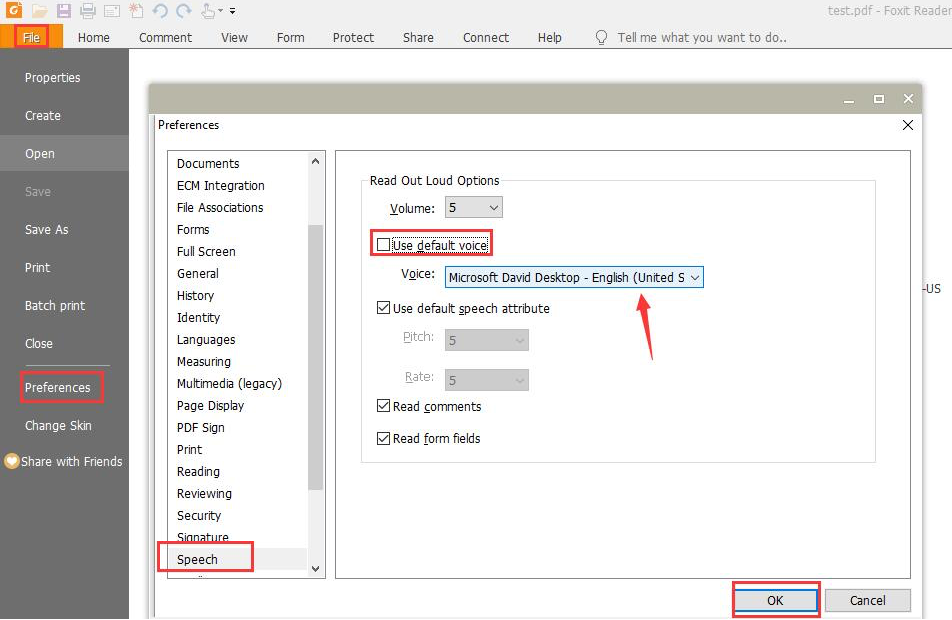
Go to File > Preferences > Speech and check the Read form fields option.
In the PDF form, press Tab to select the first form field that you want to read out loud, and then press Tab again to move to the next form field. Foxit PDF Reader will read the form field aloud and will tell you whether selected check boxes are checked and whether radio buttons are on or off.
Change the Text-to-Speech (TTS) Language in Foxit PDF Reader
To make Foxit PDF Reader read out loud in a language other than the default one, here’s what to do.
Open Foxit PDF Reader and then choose File and Preferences.
In the Preferences screen go to Speech.
Under Speech uncheck Use Default Voice.
Now you should be able to choose any other voice installed on your computer. Click the OK button to save the setting in the Preferences window.
If you don’t see the language you want in the dropdown, you’ll need to download that language pack from Microsoft. Find out how to download and install a new Text-to-Speech language for Windows 10. (Note that after installing the language pack in Windows, you may need to restart the computer.)
Control the Speed and Volume of Reading
While reading a PDF file or form field, you can interrupt the reading and adjust reading volume and speed as needed.
To adjust the reading speed: choose View > Rate
To adjust the reading volume: choose View > Volume
To pause reading: choose View > Pause
To stop reading: choose View > Read > Stop
So whether you’re vision-impaired, enjoy the multisensory experience of reading along with text that’s read aloud, or just want to hear the contents of a PDF document while you’re multitasking, you can do it with Foxit’s full-featured PDF Reader.