How to Flatten a PDF
Flattening locks in your form fields, annotations, and layers so a document stays exactly as intended when it's shared, submitted, or printed. This guide covers what flattening does, when to use it, how to do it step by step, and when to hold off.

What Does It Mean to Flatten a PDF?
Merging every interactive layer into one static page.
Flattening a PDF merges all of its interactive and layered elements into the base page content, creating a single static layer. Form fields become plain text, annotations become part of the page image, and layers merge into one plane that can no longer be toggled.
Behind the scenes, a standard PDF is a stack of transparent layers — the base page, a form field layer, an annotation layer, a comments layer. Flattening compresses all of those layers into a single sheet, like pressing them together and fusing them permanently.
The result looks identical to the original but contains no editable structure. That's exactly what makes it useful for the final stage of a document's life — court filings, government submissions, print-ready files, and signed contracts that must be preserved exactly as executed.
Understand What Flattening Changes
Different elements behave differently once a PDF is flattened.
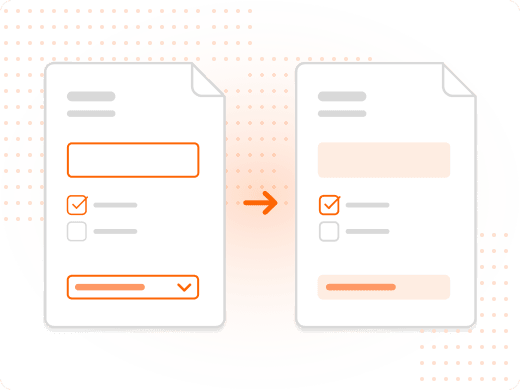
What Happens to Form Fields When You Flatten?
Interactive, clickable form fields become plain text embedded in the page. Checkbox selections become static marks, and dropdown selections become plain text showing the chosen option.
This is why flattening a fillable form is a one-time, final step — complete every field carefully first, since you can't click back into a flattened field to fix a mistake.
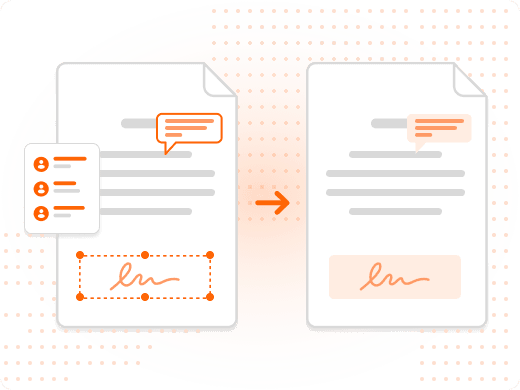
What Happens to Annotations and Comments?
Annotations and comments live on a separate, editable layer before flattening. Once flattened, they're either removed or permanently embedded as visible marks — no longer a layer you can toggle or delete.
That permanence is the point for legal and archival documents: a reviewer's markup becomes part of the record instead of something that can quietly disappear.
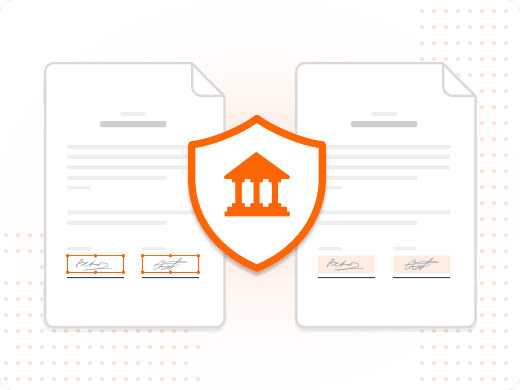
Why Is Flattening Required for Court and Government Filings?
An unflattened PDF with editable form fields can raise questions about document integrity — was this the document as filed, or could fields have changed afterward? Flattening removes that ambiguity.
Government portals frequently reject unflattened fillable forms outright. Flattening before submission prevents rejection and ensures your data is captured exactly as entered.

Why Does Flattening Matter for Print Production?
Unflattened transparency effects, blend modes, and layer interactions can render unpredictably depending on the RIP (Raster Image Processor) or printer driver used downstream.
Flattening resolves those interactions ahead of time, so the file is ready to print consistently on any system — standard practice for professional PDF/X print-ready files.
Flattening vs. Password Protection
| Feature | Flattening | Password Protection |
|---|---|---|
| Prevents further editing | Yes | Yes |
| Removes form fields | Yes | No |
| Removes annotations / comments | Yes | No |
| Merges layers into a single plane | Yes | No |
| Requires a password to open | No | Yes |
| Reversible | No | Yes (if password known) |
| Required for court / gov submissions | Often required | Varies by jurisdiction |
Feature
Prevents further editing
- Flattening
- Yes
- Password Protection
- Yes
Feature
Removes form fields
- Flattening
- Yes
- Password Protection
- No
Feature
Removes annotations / comments
- Flattening
- Yes
- Password Protection
- No
Feature
Merges layers into a single plane
- Flattening
- Yes
- Password Protection
- No
Feature
Requires a password to open
- Flattening
- No
- Password Protection
- Yes
Feature
Reversible
- Flattening
- No
- Password Protection
- Yes (if password known)
Feature
Required for court / gov submissions
- Flattening
- Often required
- Password Protection
- Varies by jurisdiction
Use flattening when the document must be static and self-contained. Use password protection when you need to control access. Use both when a document needs to be static and access-controlled — flatten first, then protect.
Why Flattening Belongs in Your Document Workflow
A one-time step that prevents costly problems downstream.
Flattening protects a signed contract or agreement from a quiet edit after the fact — once flattened, a recipient can't clear a field, change a value, and re-sign without the change being visually obvious.
For archival and compliance storage, a flat PDF is simpler to trust: no form-engine dependencies, no layer-toggle requirements, and no interactive elements that might behave differently across future PDF reader versions.
Flattening is irreversible, which is exactly why it belongs at the end of a workflow, not the middle. Always work from a copy — keep an unflattened working version until you're certain no further edits are needed.
What You Can Do with Foxit PDF Editor
Finalize documents with confidence, not guesswork.
Flatten Forms and Annotations
Merge form fields, comments, and annotation layers into static page content in a single operation from the Document menu.
Prepare Print-Ready Files
Flatten transparency, blend modes, and layers before sending to press so the output matches exactly what you see on screen.
Lock In Signed Contracts
Convert signature fields into permanent visual marks so an executed agreement can't be quietly altered after signing.
Simplify Archival Storage
Produce documents with no interactive dependencies, so they render identically in any PDF reader, now or years from now.
Batch Flatten in Bulk
Apply flattening across entire folders of PDFs in one automated run for high-volume submission or archival workflows.
Keep Your Working Copy Safe
Save a separate copy before flattening, since the operation is permanent and the original interactive structure can't be restored.
Who Flattens PDFs, and Why
A final-stage step across legal, government, print, and HR workflows.
Flattening shows up wherever a document needs to be locked down for good — not just in one department. Each team flattens for a slightly different reason, but the outcome is the same: a document that can't be second-guessed.
- Legal teams: Legal teams flatten court filings and executed contracts so the submitted or signed version can't raise questions about post-filing edits, and so reviewers see a document that matches exactly what was filed.
- Government and compliance staff: Government portals often reject unflattened fillable forms outright. Compliance teams flatten completed forms before submission to avoid rejection and preserve a clean, static record.
- Print production and design teams: Designers flatten files before sending them to a commercial printer, eliminating the transparency and layer conflicts that can cause unpredictable output on press.
- Contract and HR administrators: HR and contract admins flatten signed offer letters and agreements as a final step, converting field data into permanent text so records can't be altered after distribution.