How to Create a Fillable PDF from a Word Document
Word is where most forms start, but every recipient who opens a Word file can change the layout or break the formatting. A fillable PDF locks your layout and gives recipients a structured form experience on any device.
What Is a Fillable PDF?
Interactive form fields inside a document recipients can't otherwise alter.
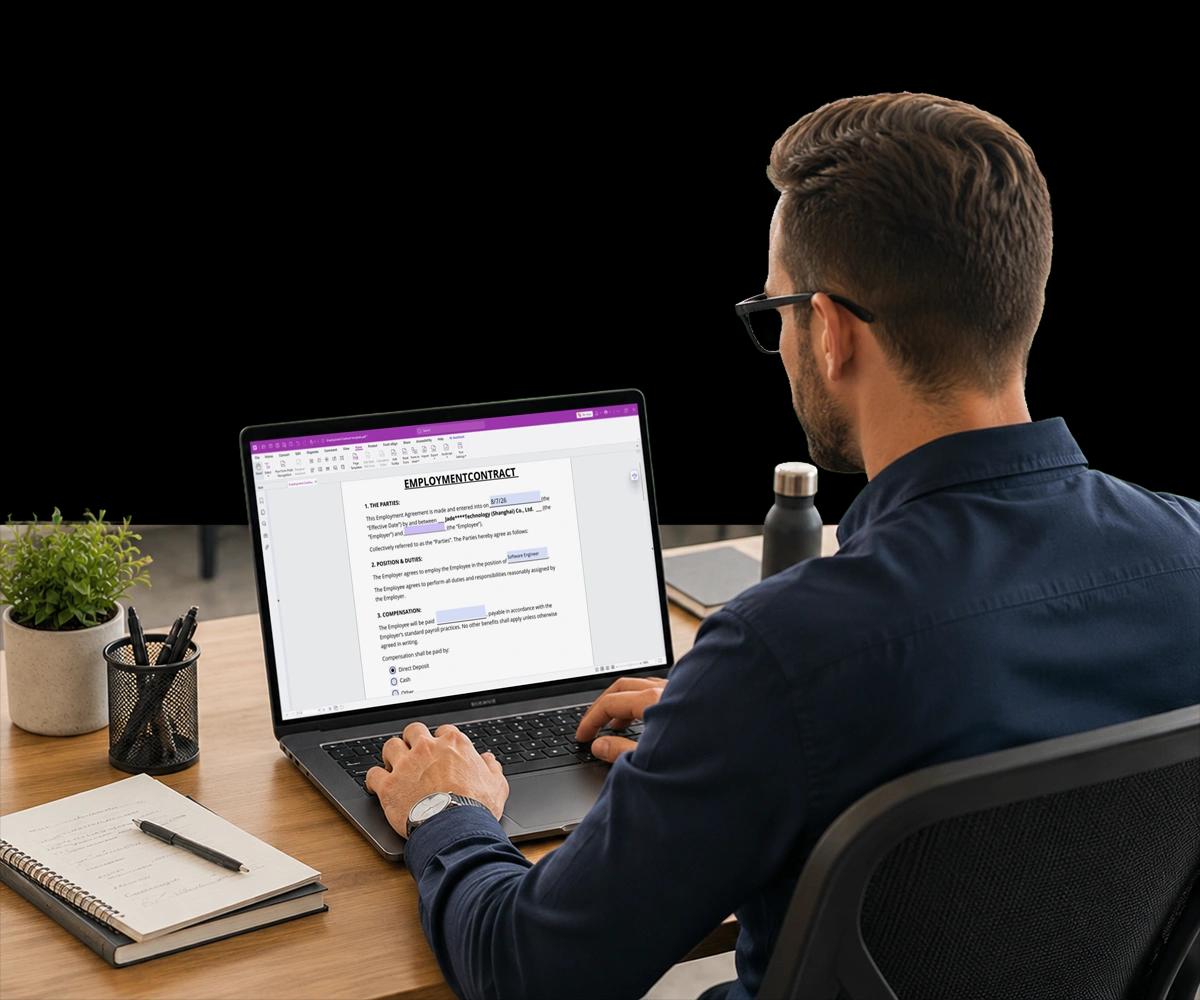
A fillable PDF is a document that contains interactive form fields — text boxes, checkboxes, radio buttons, dropdowns, date pickers, and signature areas — that recipients can complete digitally inside any standard PDF reader.
Unlike a static PDF, which is read-only, or a Word document, which is fully editable, a fillable PDF gives recipients a structured, controlled form experience. They can fill in the fields you've defined but can't edit the surrounding content or reformat the layout.
The result is consistent data collection at scale — every submission arrives in the same structure, regardless of who fills it out or what device they're using.
Why Convert Word Documents to Fillable PDFs
A one-time step that turns a draft into a distribution-ready form.
Why Does a PDF Lock In Your Layout Better Than Word?
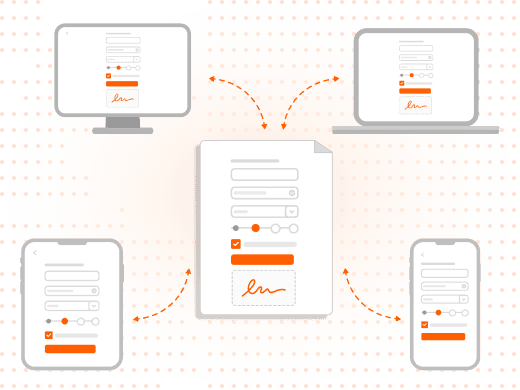
A PDF preserves your formatting exactly as designed. Recipients on Windows, Mac, iOS, Android, or any other platform see the same document — no font substitutions, no reflowing text, no broken tables.
In a Word form, there's nothing preventing a recipient from editing your instructions or deleting sections. A fillable PDF restricts interaction to the fields you've defined.
What Field Types Can You Add to a Fillable PDF?
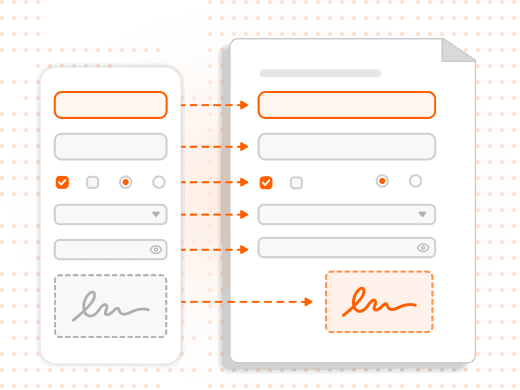
Foxit PDF Editor supports the full range of standard field types: text fields for open responses, checkboxes for independent selections, radio buttons for mutually exclusive choices, dropdowns, date pickers, and signature fields.
Using consistent field naming — FirstName, LastName, Email — rather than generic labels matters when you process or export the form data later.
How Do You Add a Signature Field for Approvals?
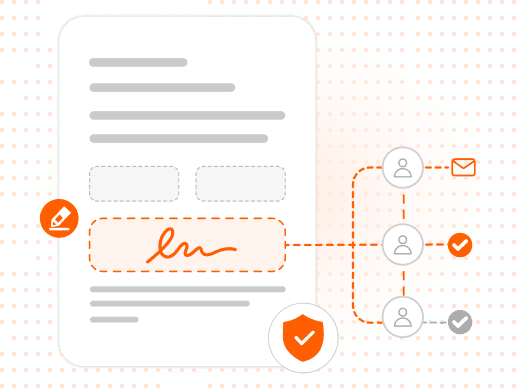
Add a Signature Field from the Form tab for any document that requires authorization. Recipients can sign directly using a typed name, drawn signature, or digital certificate.
For legally binding e-signature workflows with audit trails and multi-party signing, connect your fillable PDF to Foxit eSign instead of relying on the field alone.
Why Should You Test a Form Before Distributing It?
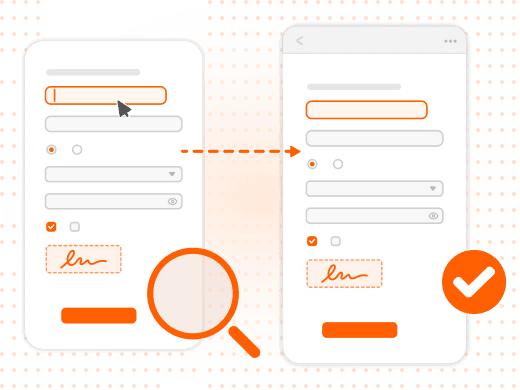
Switch to the Hand tool and test every field as a recipient would — tab through in order, fill in every field type, and test the signature area and any submit button.
Check the form on at least one external PDF reader to confirm field behavior is consistent outside the editor before saving the final distribution copy.
Word Form vs. Fillable PDF: What's the Difference?
| Feature | Word Form | Fillable PDF |
|---|---|---|
| Formatting consistency across devices | Variable | Fixed |
| Prevents editing of layout | No | Yes |
| Structured form field types | Limited | Full range |
| Universal compatibility | Requires MS Word | Any PDF reader |
| Electronic signature support | Limited | Yes |
| Data submission / collection | No | Yes |
| Password protection / permissions | Basic | Enterprise-grade |
Feature
Formatting consistency across devices
- Word Form
- Variable
- Fillable PDF
- Fixed
Feature
Prevents editing of layout
- Word Form
- No
- Fillable PDF
- Yes
Feature
Structured form field types
- Word Form
- Limited
- Fillable PDF
- Full range
Feature
Universal compatibility
- Word Form
- Requires MS Word
- Fillable PDF
- Any PDF reader
Feature
Electronic signature support
- Word Form
- Limited
- Fillable PDF
- Yes
Feature
Data submission / collection
- Word Form
- No
- Fillable PDF
- Yes
Feature
Password protection / permissions
- Word Form
- Basic
- Fillable PDF
- Enterprise-grade
Why Fillable PDFs Are the Professional Standard
Consistency and control that a Word form simply can't offer.
Standardized data collection is the real payoff — when every submission arrives in the same structure, downstream processing becomes predictable, with responses in the right fields and format, ready for review or import.
PDF is a universal format: anyone with a free PDF reader can complete your form, with no Microsoft Office license, version compatibility issue, or platform restriction standing in the way.
Fillable PDFs also support password protection, permissions settings, and encryption, so you can allow form filling while preventing editing of the layout, copying of content, or printing — control that a Word form doesn't offer.
What You Can Do with Foxit PDF Editor
A complete form-building toolkit, from Word draft to distribution-ready PDF.
Convert Word to PDF in One Step
Export directly from Word using the Foxit PDF add-in, or convert from within Foxit PDF Editor without losing layout or formatting.
Add Every Field Type You Need
Insert text fields, checkboxes, radio buttons, dropdowns, and date pickers from a single Form tab.
Build in Signature Areas
Add signature fields for approvals, or connect to Foxit eSign for a fully audit-trailed signing workflow.
Enforce Required Fields
Mark fields as required and set input validation so a form can't be submitted incomplete.
Configure One-Click Submission
Add a Submit button that routes completed form data to an email address or endpoint automatically.
Protect the Finished Form
Apply password protection and permissions so recipients can fill the form without altering its layout or content.
Fillable PDF Use Cases by Business Function
Structured forms handle a wide range of business workflows.
Fillable PDFs deliver the most immediate value wherever a business needs the same structured information back from many different people, reliably and repeatedly.
- HR and onboarding: HR teams use fillable PDFs for employment applications, benefits enrollment, and policy sign-offs, ensuring every new hire returns the same structured document ready to file without reformatting.
- Client intake: Professional services firms and healthcare providers use fillable PDFs for new client intake, capturing structured information without email threads or phone calls to collect missing data.
- Compliance and regulatory documents: Compliance teams use fillable PDFs to standardize certifications and declarations, with controlled field types preventing the data entry variations that create compliance gaps.
- Internal operations: Operations teams replace paper-based or email-based requests with fillable PDFs for purchase requests, travel approvals, and expense reports, routing submissions to the right inbox automatically.