Extract Text from Images
Scanned contracts, invoices saved as images, and paper records that no search will ever surface — OCR reads the text inside any image-based file and turns it into content your team can actually search and use.
What Is Image Text Extraction?
OCR, explained for a business audience.
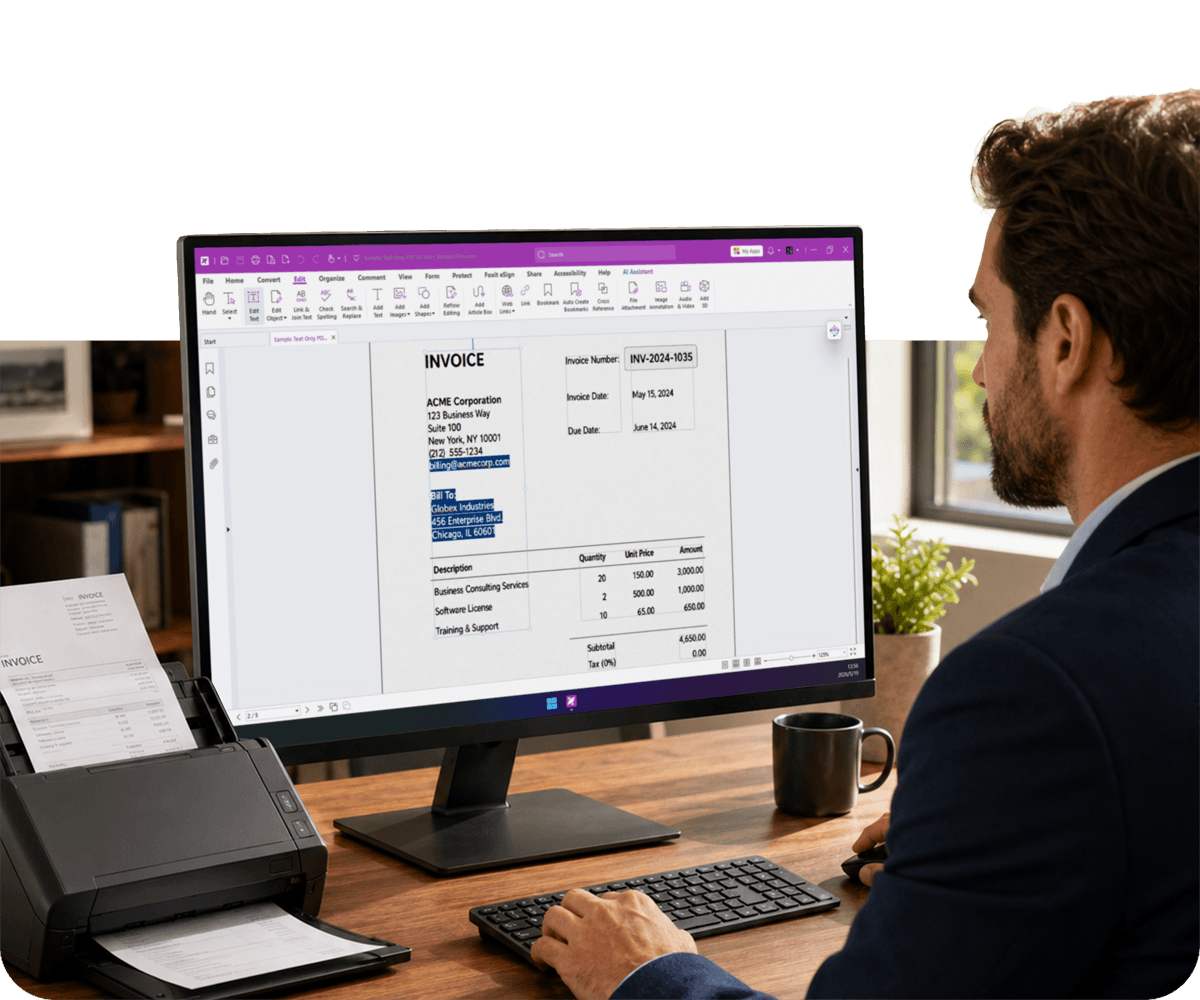
Image text extraction is the process of identifying and converting text that exists within a visual file — a scanned document, a photograph, or an image-based PDF — into machine-readable, editable text.
The underlying technology is OCR: Optical Character Recognition. It analyzes the visual patterns in an image, identifies characters and words, and outputs them as text that can be searched, copied, edited, or imported into other systems.
The result is a document that behaves like a typed file — fully searchable, selectable, and editable — regardless of how it was originally created.
Why Businesses Need Image-to-Text Tools
Manual retyping doesn't scale — OCR removes the bottleneck.
What's the Real Cost of Manual Data Entry?
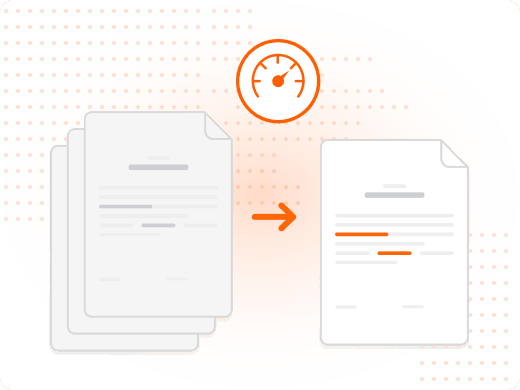
Manual data entry is one of the most persistent drains on business productivity — slow, error-prone, and impossible to scale, taking roughly three to five minutes per page compared to seconds with OCR.
When documents arrive as scans or image-only PDFs, someone has to either retype the content or leave it unsearchable — neither option holds up at any real volume.
How Do You Extract Text from a Scanned Document?
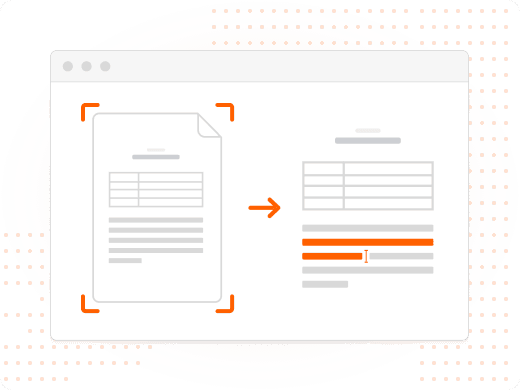
Open the scanned file in Foxit PDF Editor, navigate to the Convert tab, and select OCR. Choose your target language and run the recognition process across every page in a single pass.
Scan at a minimum of 300 DPI for reliable accuracy — higher resolution produces better results with complex layouts or small type.
How Accurate Is OCR on Business Documents?
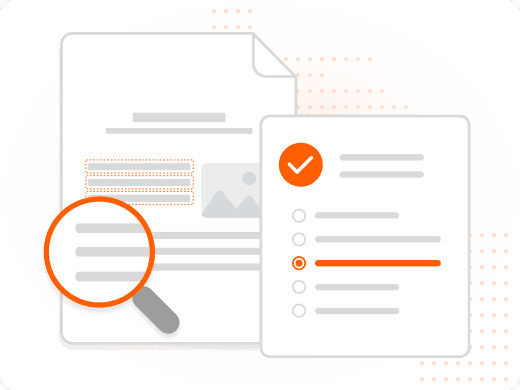
Modern OCR handles clean, standard-font documents with very high accuracy. Handwritten text, degraded scans, or unusual fonts may produce errors that need a manual correction pass.
Use Find and Replace to catch systematic errors — if a character is consistently misread, you can correct every instance at once.
Is OCR Processing Secure for Sensitive Documents?
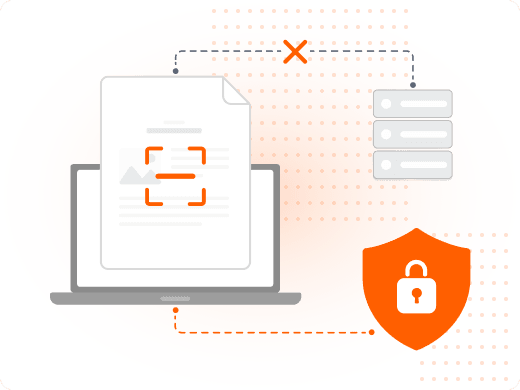
OCR processing in Foxit PDF Editor runs locally — your documents are processed on your machine, not uploaded to external servers.
For sensitive business, legal, and financial documents, that keeps your data under your control throughout the entire workflow.
Manual Retyping vs. OCR Extraction
| Task | Manual Retyping | OCR Extraction |
|---|---|---|
| Speed per page | 3–5 minutes | Seconds |
| Accuracy | Error-prone | High accuracy |
| Searchable output | No | Yes |
| Scales to bulk files | No | Yes |
| Editable in standard tools | No | Yes |
| Works on scanned PDFs | No | Yes |
| Supports multiple languages | Limited | Yes |
| Compliance-ready output | Inconsistent | Structured |
Task
Speed per page
- Manual Retyping
- 3–5 minutes
- OCR Extraction
- Seconds
Task
Accuracy
- Manual Retyping
- Error-prone
- OCR Extraction
- High accuracy
Task
Searchable output
- Manual Retyping
- No
- OCR Extraction
- Yes
Task
Scales to bulk files
- Manual Retyping
- No
- OCR Extraction
- Yes
Task
Editable in standard tools
- Manual Retyping
- No
- OCR Extraction
- Yes
Task
Works on scanned PDFs
- Manual Retyping
- No
- OCR Extraction
- Yes
Task
Supports multiple languages
- Manual Retyping
- Limited
- OCR Extraction
- Yes
Task
Compliance-ready output
- Manual Retyping
- Inconsistent
- OCR Extraction
- Structured
Benefits of OCR for Business Document Workflows
The case for OCR goes beyond speed alone.
OCR converts documents in seconds that would take minutes or hours to retype manually — for high-volume operations like invoice processing or contract intake, this compounds into significant time savings across departments.
Manual transcription introduces errors that scale with volume and fatigue. OCR produces consistent output from clean source material, which matters when the data is financial, legal, or compliance-related.
A scanned document that can't be searched is an organizational liability — it exists in storage but can't be found when needed. OCR converts it into a document that responds to search, available to whoever needs it.
What You Can Do with Foxit PDF Editor
From scan to searchable, editable text in a few clicks.
Run OCR on Any Scanned File
Process JPEG, PNG, TIFF, BMP, and multi-page scanned PDFs into a searchable text layer in a single pass.
Support Multiple Languages
Recognize and process documents in different languages and character sets for global business operations.
Process in Bulk
Apply OCR across entire folders of scanned files in one batch operation for high-volume workflows.
Search and Edit Recognized Text
Select, copy, search, and directly edit text once OCR has been applied to a document.
Export to Word or Excel
Send OCR-processed content to Word, Excel, or plain text for downstream use outside the PDF.
Keep Processing Local
Run OCR on your own machine rather than uploading sensitive documents to an external server.
Common Business Use Cases for OCR
The operational value varies by function, but the pattern is the same.
Wherever paper or image-only files pile up faster than anyone can manually process them, OCR turns that backlog into a searchable, usable asset.
- Legal and contracts: Legal and procurement teams use OCR to make scanned contracts and filings searchable, surfacing specific clauses or dates in seconds instead of a full manual review.
- Finance and accounts payable: Finance teams extract vendor names, amounts, and dates from scanned invoices, reducing manual entry into accounting systems and improving accuracy.
- Records and archive management: Organizations with years of paper HR or compliance records use OCR to make scanned archives keyword-searchable without recreating them from scratch.
- Compliance and audit readiness: Compliance teams rely on OCR-processed archives to respond to audit requests in hours instead of days of manual search.