How to Remove a Password from a PDF
If you have permission to access a secured document, you can remove its password and get back to editing, sharing, or storing it without restrictions. This guide walks business professionals through PDF password types, safe removal steps, and best practices for managing document security.
What Does Removing a PDF Password Mean?
Understanding what happens when you unlock a secured document.
Removing a password from a PDF means clearing the encryption that currently restricts access to the file. Every secured PDF uses at least one password type to control who can open it, edit it, or copy its content. When you remove that password, the underlying document doesn't change — only the barrier around it does. The file becomes immediately usable without prompting anyone for credentials, which matters once a document has outlived its need for restricted access.
Behind the scenes, a PDF password ties an encryption key to the file. A secure PDF editor like Foxit PDF Editor reads the current security settings, confirms you have the correct credentials, and then rewrites the document without that encryption layer. Nothing in the layout, formatting, or content changes during this process. The result is the same file you started with, minus the login step that previously stood between your team and the content.
For business teams, this matters more than it sounds. Contracts move through review cycles, reports get shared with new stakeholders, and archived files need to be searchable years later. A password that made sense during drafting can become friction once a document reaches its next stage. Keeping that process secure means handling it inside a platform built to protect, secure, and sign PDFs — not a workaround.
Understand PDF Password Types Before You Unlock
Two password types control different parts of a secured PDF.
What Is a PDF Open Password?
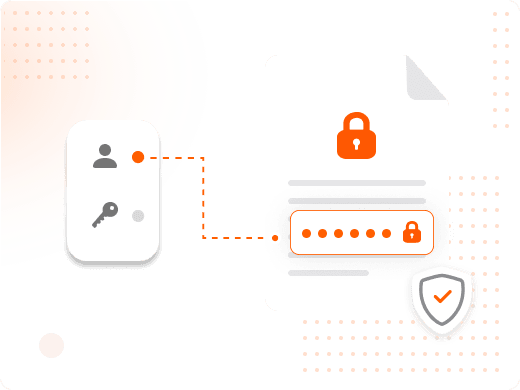
A document open password blocks access to the file itself. Anyone who doesn't enter the correct password can't view, edit, or print the PDF — the content stays fully locked until the right credentials are entered.
This type is common for files shared outside the organization, like proposals sent to prospective clients or contracts awaiting a signature. Once the recipient no longer needs restricted access, removing the open password lets the file move freely through the next stage of your workflow.

What Is a PDF Permissions Password?
A permissions password works differently. It lets anyone open the document, but it restricts specific actions — editing, copying text, printing, or modifying form fields — unless the correct password is entered to lift those restrictions.
Permissions passwords show up often in finalized reports, published templates, or compliance documents where the content should be viewable but not altered. Only someone with the correct permissions password can remove these limits and unlock full editing rights.
When Is It Safe to Remove a PDF Password?
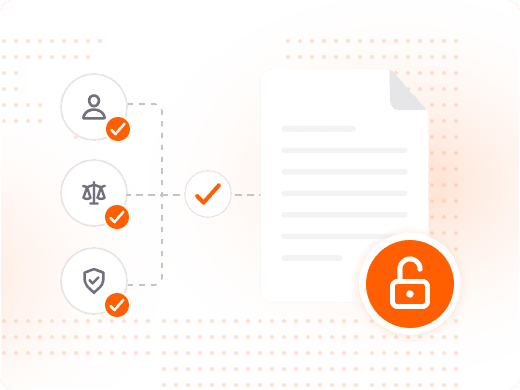
It's safe to remove a PDF password when you have explicit permission to access the file and a legitimate reason to unlock it — for example, the document no longer contains sensitive information, or your role requires full editing access.
If you're unsure whether you have the right to remove a password, check with the document owner or your IT and legal teams first. Removing protection from a file you don't have rights to isn't a step Foxit supports or encourages.
What Should You Check Before Unlocking a PDF?
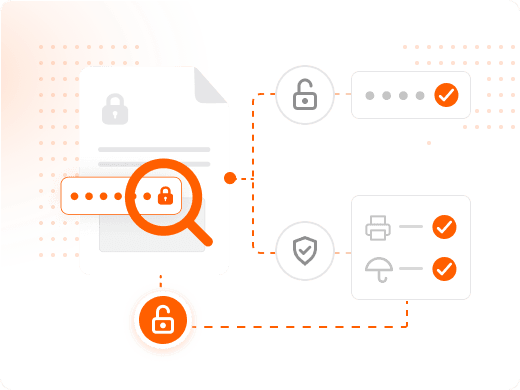
Before removing a password, confirm what type of protection the file uses. An open password and a permissions password require different steps, and mixing them up can leave restrictions in place even after you think you've unlocked the document.
It also helps to check whether the file needs to retain any protections, like restricted printing on a finalized contract. Reviewing security settings first prevents you from removing more access control than the document actually needs.
Why Managing PDF Passwords Well Matters
The business case for treating password removal as part of document security, not separate from it.
Managing PDF passwords well pays off in three ways. It saves time, since teams stop re-requesting access or recreating documents that got locked out. It reduces risk, because password removal happens through a controlled process rather than a workaround. And it keeps workflows moving, since files can advance to editing, review, or signature the moment restrictions are no longer needed.
Compliance adds another layer. Industries like finance, healthcare, and legal services often require documented control over who can access or modify sensitive files. Using a secure PDF editor to manage password removal creates a consistent, auditable process instead of relying on ad hoc online tools of unknown origin — a distinction that matters during a compliance review or security audit.
Operationally, password management works best when it's part of the same platform your team already uses to edit, sign, and store documents. Handling password removal, permission changes, and electronic signatures in one workflow cuts down on the tool-switching that slows document-heavy teams down and creates fewer places for sensitive files to end up unmanaged.
What You Can Do with Foxit PDF Editor
One editor for unlocking, protecting, and moving documents forward.
Remove Passwords Securely
Clear an open or permissions password from a PDF you're authorized to access, without altering the document's formatting, layout, or content. The file opens and edits normally the moment the password is gone.
Set Custom Permissions
Control who can edit, copy, or print a document by applying a permissions password instead of locking the file completely. Reviewers can view content while sensitive sections stay protected from accidental changes.
Encrypt Sensitive Files
Apply password protection and encryption to new or existing PDFs before sharing them outside your team, so confidential contracts, reports, and records stay protected in transit and at rest.
Route Documents for Signature
Send an unlocked PDF straight into an electronic signature workflow once passwords or restrictions no longer serve a purpose, keeping approvals moving without exporting the file to another tool.
Work Across Devices
Access, edit, and manage secured PDFs from desktop, web, or mobile, so unlocking or protecting a document doesn't depend on which device happens to be nearby when a deadline hits.
Get More for Less
Handle password removal, editing, and document protection inside one licensing plan instead of paying for separate point solutions that each solve one piece of the workflow.
Who Removes PDF Passwords, and Why
Common situations where unlocking a secured document keeps work moving.
Password removal comes up across nearly every department that handles secured files, not just IT. The specific reason usually depends on the role: legal teams manage retention and disclosure, administrative staff prep documents for distribution, and sales teams need contracts to move quickly through review. What's consistent across all of them is the need to unlock files without introducing new security risk.
- IT teams: IT teams remove or reset PDF passwords when access requests pile up after an employee leaves, a shared drive gets reorganized, or a legacy file uses a password no one remembers. Doing this through Foxit PDF Editor keeps the process auditable and avoids introducing unmanaged tools into the environment — which matters when a security review asks how access changes are tracked.
- Legal teams: Legal teams work with contracts and filings that carry permissions passwords restricting copying or editing until a document is finalized. Once a matter closes or a document moves to the next stage of review, removing that restriction lets the team protect, secure, and sign the next version without starting the file from scratch.
- Administrative staff: Administrative staff often unlock PDFs that arrive from vendors, partners, or other departments with a password attached for a purpose that no longer applies — like a file that only needed protection during initial transit. Removing the password lets them file, distribute, or archive the document using standard processes instead of tracking down credentials each time it's opened.
- Sales and contract teams: Sales and contract teams need proposals and agreements to move fast once a prospect is ready to sign. If a draft carries an open or permissions password from an earlier review stage, removing it clears the way to send the file through electronic signature without extra back-and-forth over access.
Frequently Asked Questions
Common questions about removing and managing PDF passwords.