How to Edit PDFs on iPhone
Your iPhone can do more with a PDF than just view it. This guide covers adding text, signing, filling forms, running OCR on scanned pages, and syncing edits across your other devices — all from iOS.
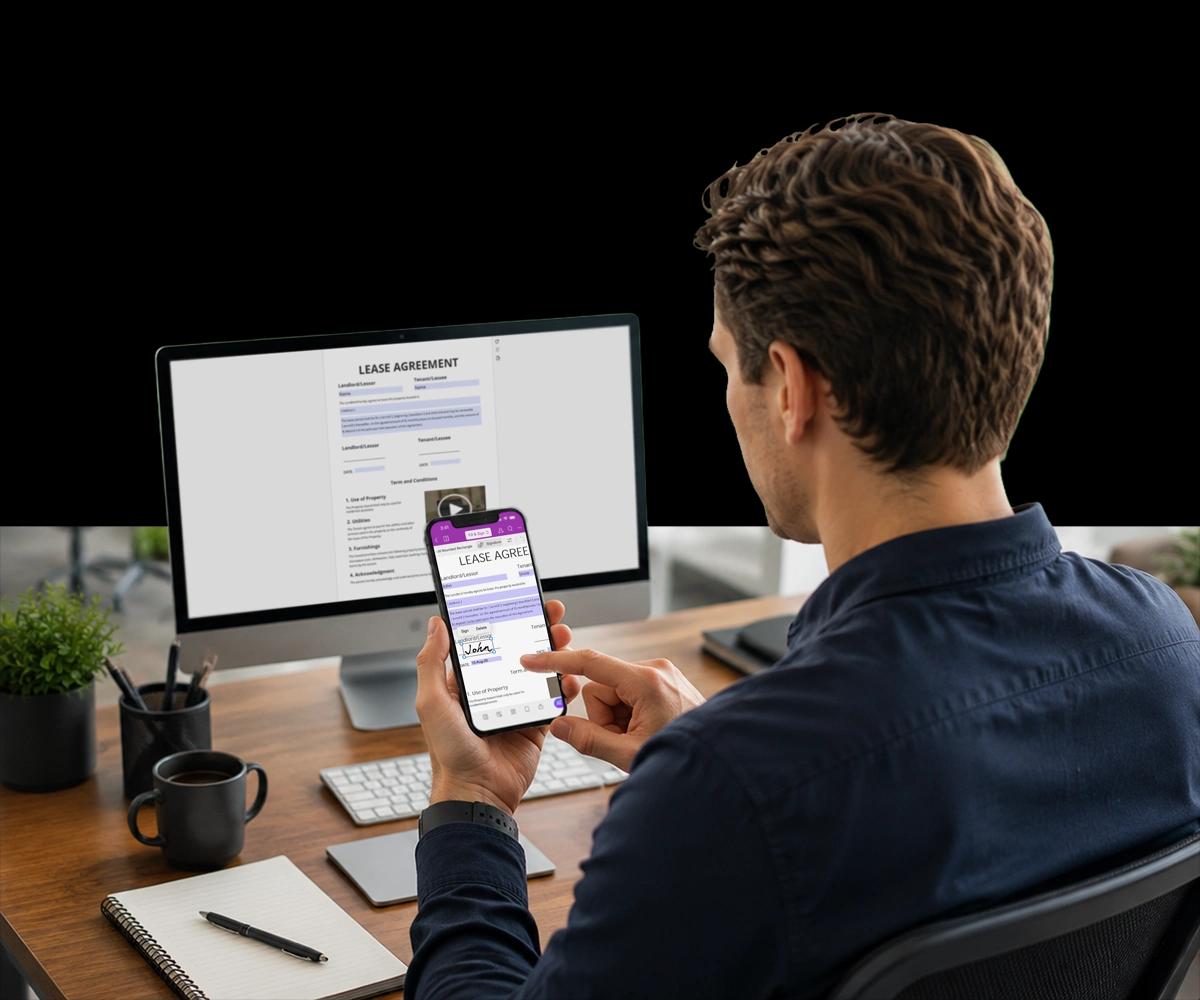
Can You Really Edit a PDF on an iPhone?
Yes — with the right app, most editing tasks are just as capable as desktop.
Apple's built-in Markup tool lets you annotate and sign PDFs from the Files app, but it stops short of adding real text, filling structured form fields reliably, or running OCR on a scanned document.
A dedicated mobile PDF editor closes that gap. Foxit PDF Editor for iOS adds proper text boxes, recognizes and fills form fields, applies signatures, and can convert a scanned page into searchable, editable text.
This guide walks through each of those tasks step by step, plus how to keep your edits in sync if you also work on a desktop or across other devices during the day.
What You Can Actually Do on iPhone
Four common editing tasks, and how each one works on iOS.
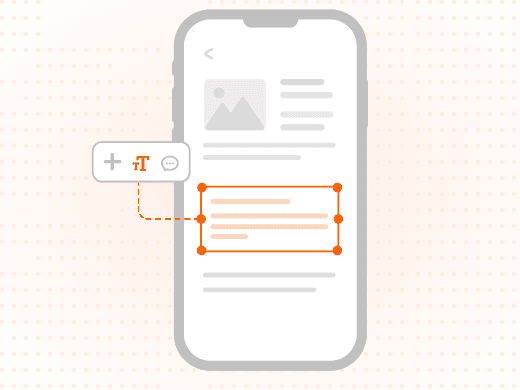
How Do You Add Text to a PDF on iPhone?
Open the PDF in Foxit PDF Editor, tap the Edit tool, then tap anywhere on the page to place a text box. Type your content, then adjust font size and position with a tap and drag.
This works on any PDF, not just forms — useful for adding a note, a date, or a short annotation to a document someone sent you.
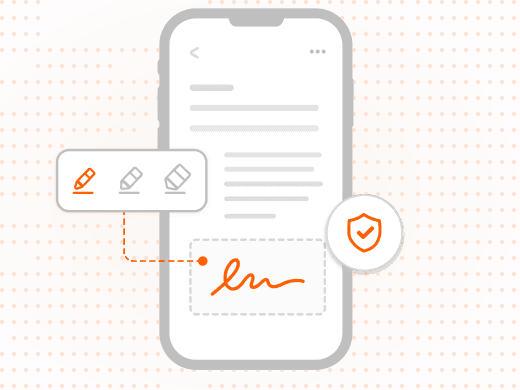
How Do You Sign a PDF on iPhone?
Tap the Signature tool, then draw your signature with your finger, type your name in a signature-style font, or reuse a signature saved from a previous session.
Place the signature on the correct field and save. For documents that need a legally binding, audit-trailed signature, route the file through Foxit eSign instead.
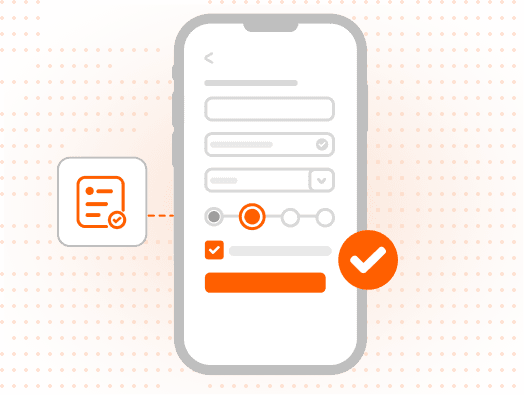
How Do You Fill Out PDF Forms on iPhone?
Tap any form field to activate it — a keyboard appears automatically for text fields, and tap-to-select controls appear for checkboxes and dropdowns.
Use the Next and Previous field navigation arrows above the keyboard to move through the form in order without missing a field.
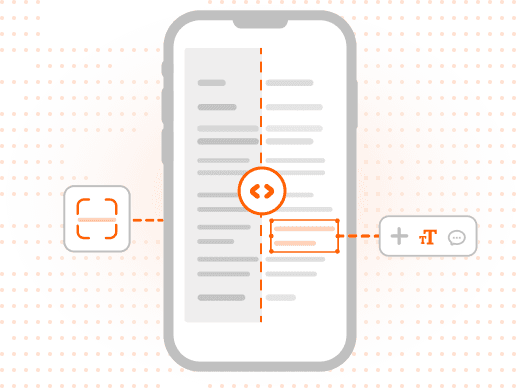
How Do You Edit a Scanned PDF on iPhone?
A scanned PDF is a photograph of a page — the text isn't real, selectable text yet. Tap the OCR tool to have Foxit process the page and generate a searchable, editable text layer.
Once OCR completes, you can tap into the text and edit it normally, the same as any other PDF.
Why Mobile Editing Matters for Business Documents
Document work doesn't wait until you're back at a desk.
Deals close, forms get requested, and contracts need a signature at moments that have nothing to do with your desk schedule. Being able to complete those tasks from an iPhone keeps work moving instead of waiting.
Security matters just as much on mobile as on desktop. Foxit PDF Editor for iOS applies the same password protection and permissions controls available on desktop, so a document edited on your phone is no less protected.
For teams that work across devices, edits made on iPhone sync through supported cloud storage, so the version you finished on the train is the same version waiting for you at your desk.
What You Can Do with Foxit PDF Editor for iOS
A full editing toolkit, sized for your phone.
Add Text Anywhere
Insert real, editable text boxes into any PDF — not just annotations — with full control over font size and placement.
Sign on the Spot
Draw, type, or reuse a saved signature to sign documents directly from your iPhone in seconds.
Fill Forms Field by Field
Tap through structured form fields with an automatic keyboard and Next/Previous navigation controls.
Scan and Run OCR
Capture a paper document with your camera and convert it into a searchable, editable PDF in one step.
Sync Across Devices
Keep edits consistent between your iPhone, iPad, and desktop through supported cloud storage integrations.
Protect What You Edit
Apply the same password protection and permissions controls on mobile as you would on desktop.
Who Edits PDFs on iPhone, and Why
Mobile editing serves real business moments, not just convenience.
Editing a PDF on a phone isn't a compromise when the app is built for it — it's often the fastest way to keep a document workflow moving without waiting for a desk.
- Sales professionals: Sales reps mark up and sign proposals between meetings, sending a completed document before a prospect has time to reconsider.
- Field service teams: Technicians fill out inspection reports and work orders on-site, capturing a signature from a customer before leaving the location.
- Remote and hybrid employees: Employees who split time between locations complete HR forms and approvals from their phone without needing a laptop nearby.
- Freelancers and consultants: Independent professionals sign client contracts and send invoices for approval while away from a home office setup.