How to Split and Merge PDF Files
A file that's too big, too mixed, or missing the right supporting documents is one of the most common document problems in business. This guide covers splitting, merging, extracting, and reordering PDF pages, step by step.
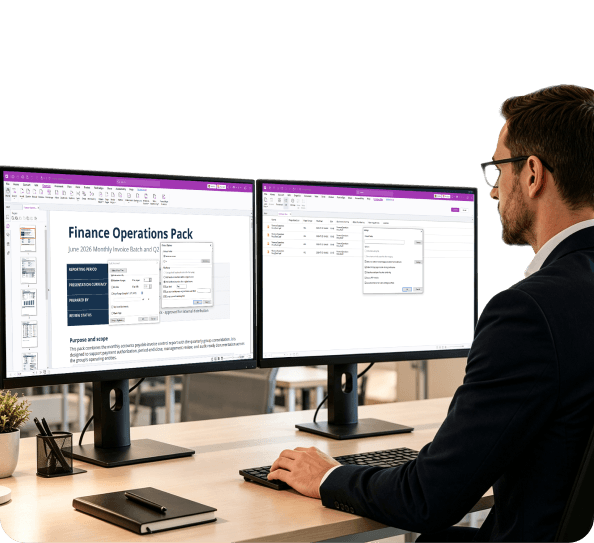
What Does It Mean to Split or Merge a PDF?
Two opposite operations, both essential to a clean document workflow.
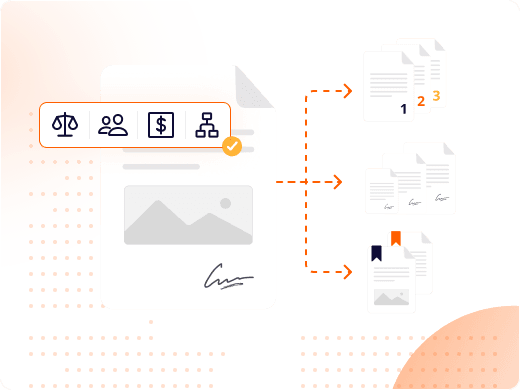
Splitting divides a single PDF into multiple separate files. You define how the file is divided — by specific page ranges, by fixed page intervals, or by extracting individual pages as standalone files.
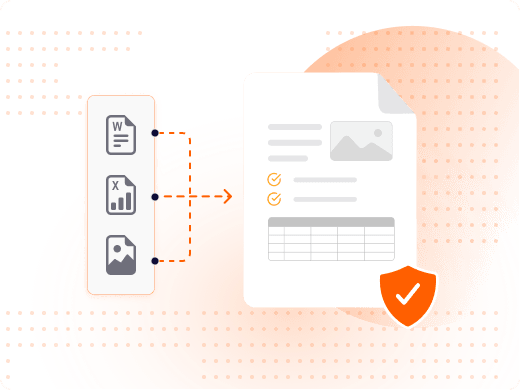
Merging combines two or more PDF files into a single document. You define the order in which the files appear in the final merged PDF, and the output preserves the formatting, fonts, images, and layout of every source document.
Split and merge are the two most common operations, but they're part of a broader set of page-level tools — extracting specific pages, reordering pages within a file, and deleting pages — that together give you full control over a document's structure.
The Full Range of PDF Page Operations
Split and merge are the most common, but not the only tools you need.
How Do You Split a PDF File?
Open the PDF in Foxit PDF Editor and go to Organize → Split. Choose your method: by page count, by file size, or by bookmark — useful for documents structured with chapters or sections.
For splitting by specific page ranges instead of the whole document, use the Extract Pages option to pull out exactly the pages you need.
How Do You Merge Multiple PDFs Into One?
Go to File → Create → Combine Files into a Single PDF, add the files you want to merge, and arrange them in order using the Move Up and Move Down controls before combining.
Foxit PDF Editor also supports merging non-PDF files — Word documents, Excel spreadsheets, and images are converted to PDF automatically as part of the merge process.

How Do You Extract Specific Pages Instead of Splitting the Whole File?
Use Organize → Extract Pages to pull out individual pages or a custom range — for example, pages 3, 7, and 12 through 15 — rather than dividing the entire document.
You can choose whether to delete the extracted pages from the original file or keep them in both places, depending on whether you're pulling a copy or truly separating content.
How Do You Reorder Pages After Merging?
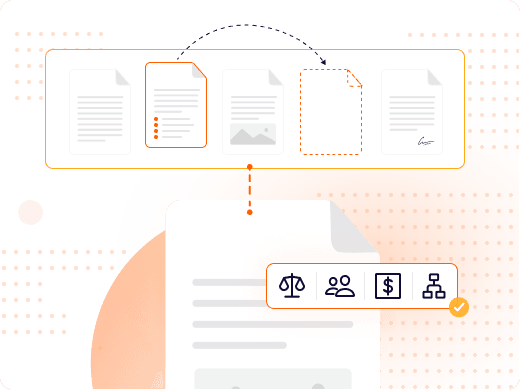
If the page order needs adjustment after merging, go to the Organize Pages panel (View → Page Thumbnails) and drag and drop thumbnails into the correct sequence.
This gives you page-level control over the final document structure without needing to redo the merge from scratch.
The Full Range of PDF Page Operations
| Operation | What It Does | When to Use It | Output |
|---|---|---|---|
| Split | Divides one PDF into multiple separate files based on page ranges or intervals | Separating chapters, exhibits, or sections that need to be distributed independently | Multiple smaller PDFs from one source file |
| Merge | Combines multiple PDF files into one single document in a defined order | Consolidating monthly reports, assembling case files, creating complete packets | One unified PDF from multiple source files |
| Extract | Removes specific pages from a PDF and saves them as a new file | Pulling one invoice from a batch, isolating a signed page, saving a single exhibit | A new PDF containing only the extracted pages |
| Reorder | Rearranges pages within a single PDF without adding or removing content | Correcting scan order, reorganizing sections, putting appendices in the right place | Same PDF with pages in the new sequence |
| Delete | Permanently removes specific pages from a PDF | Removing a blank page, a draft watermark page, or outdated content | The original PDF minus the deleted pages |
Operation
Split
- What It Does
- Divides one PDF into multiple separate files based on page ranges or intervals
- When to Use It
- Separating chapters, exhibits, or sections that need to be distributed independently
- Output
- Multiple smaller PDFs from one source file
Operation
Merge
- What It Does
- Combines multiple PDF files into one single document in a defined order
- When to Use It
- Consolidating monthly reports, assembling case files, creating complete packets
- Output
- One unified PDF from multiple source files
Operation
Extract
- What It Does
- Removes specific pages from a PDF and saves them as a new file
- When to Use It
- Pulling one invoice from a batch, isolating a signed page, saving a single exhibit
- Output
- A new PDF containing only the extracted pages
Operation
Reorder
- What It Does
- Rearranges pages within a single PDF without adding or removing content
- When to Use It
- Correcting scan order, reorganizing sections, putting appendices in the right place
- Output
- Same PDF with pages in the new sequence
Operation
Delete
- What It Does
- Permanently removes specific pages from a PDF
- When to Use It
- Removing a blank page, a draft watermark page, or outdated content
- Output
- The original PDF minus the deleted pages
Why Businesses Split and Merge PDFs
Split and merge operations are how professional document workflows stay organized.
Legal professionals routinely work with large, complex documents that need to be reorganized for different purposes — a discovery production split by document type, or pleadings, exhibits, and correspondence merged into one submission package.
HR teams manage document packets that vary by role, department, and employment status. Merging onboarding forms, policy acknowledgments, and benefits enrollment documents into a single packet simplifies distribution and ensures every new hire receives a complete, consistent package.
Finance departments process document batches that need to be separated for routing and review — monthly invoice batches split by vendor, expense reports extracted from batch submissions, and year-end financial statements from multiple sources merged into a single consolidated report.
What You Can Do with Foxit PDF Editor
Every page-level operation your document workflow needs.
Split by Count, Size, or Bookmark
Divide a PDF into files of N pages each, by maximum file size, or at each top-level bookmark for chapter-based documents.
Merge Files in Any Order
Combine multiple PDFs — and convertible files like Word and Excel documents — into one file in exactly the order you choose.
Extract Exact Page Ranges
Pull specific pages or ranges into a new standalone PDF, keeping or removing them from the original.
Reorder Pages Visually
Drag and drop page thumbnails to rearrange a document's structure without redoing a merge or split.
Delete Unwanted Pages
Permanently remove specific pages — blank scans, drafts, outdated content — from a PDF in a few clicks.
Process Files Locally
Split and merge documents on your own machine, without uploading sensitive files to a third-party server.
Who Splits and Merges PDFs, and Why
Page-level document control shows up across nearly every function.
Split and merge operations aren't just file utilities — they're how professional document workflows stay organized, accurate, and easy to hand off between people and departments.
- Legal teams: Legal professionals split large discovery productions by document type and merge pleadings, exhibits, and correspondence into a single, organized submission package.
- HR departments: HR teams merge onboarding forms, policy acknowledgments, and benefits documents into a single new-hire packet, ensuring every employee receives a complete, consistent set.
- Finance teams: Finance departments split monthly invoice batches by vendor and merge quarterly reports from multiple sources into one consolidated summary document.
- Operations and project management: Operations teams combine project specs, timelines, and sign-off documents into one complete project record, and split large bundles by phase or workstream as projects progress.