The Best Way to Digitize Paper Documents
A drawer full of paper isn't an archive — it's a search problem waiting to happen. This guide covers scanning at the right resolution, running OCR, naming files consistently, and choosing what to digitize first.

What Does It Mean to Properly Digitize a Document?
A photo of a page isn't the same as a usable digital record.
Digitizing a paper document means more than taking a picture of it. A true digital record is legible, searchable, consistently named, and stored somewhere it can actually be found again months or years later.
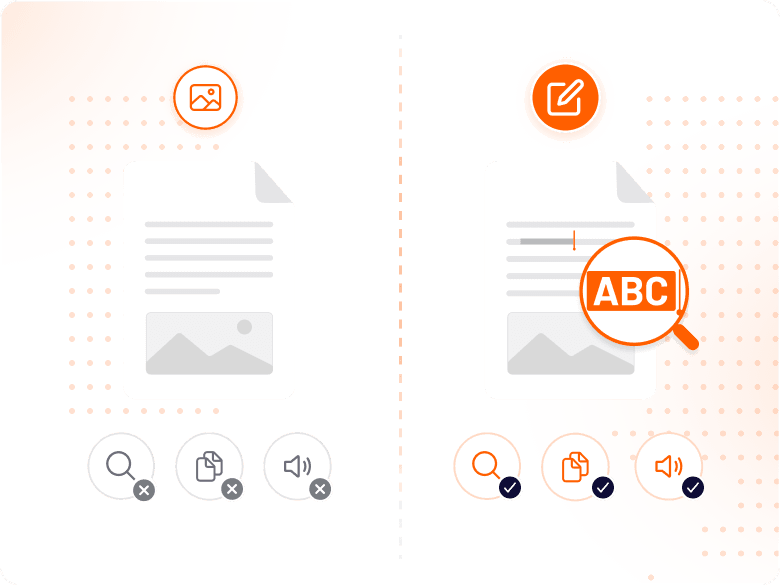
Scanning without OCR produces a picture of text, not real text — you can look at it, but you can't search it, copy it, or have a screen reader read it aloud. OCR (Optical Character Recognition) is what makes a scan genuinely useful.
Getting this right the first time matters, because redoing a digitization project after the fact — rescanning, renaming, reorganizing thousands of files — costs far more than doing it properly from the start.
The Four Decisions That Determine Archive Quality
Resolution, OCR, naming, and storage — get these right and the rest follows.
What Resolution Should You Scan At?
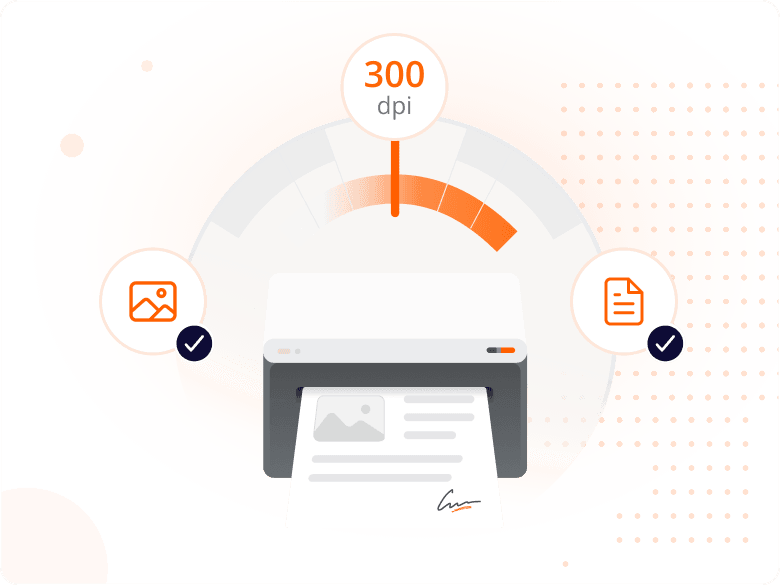
300 DPI is the minimum for legible text documents and reliable OCR accuracy. Use 600 DPI for archival storage or documents with small text, and 1200 DPI or higher for photographs and fine detail.
Scanning at 72 or 150 DPI — common defaults on consumer scanners — produces files that look fine on screen but fail OCR accuracy tests and print poorly.
Why Does OCR Matter More Than the Scan Itself?
A scan without OCR is a photograph of a page — you can't search it, copy text from it, or have it read aloud by accessibility tools. OCR reads the visual patterns and generates a real, selectable text layer.
Once OCR is applied, the document behaves like a typed file: searchable, selectable, and ready to be indexed by whatever system stores your archive.
How Should You Name Digitized Files?
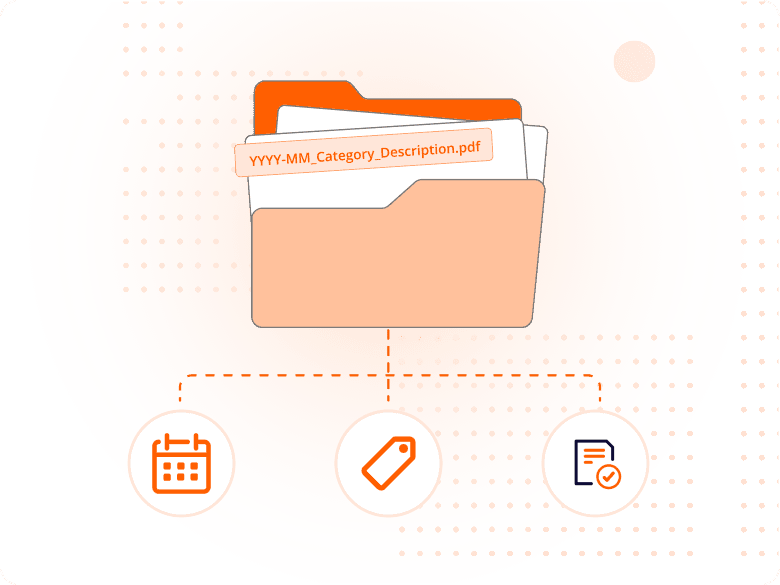
A findable archive depends on consistent naming, not clever folder structures. A format like YYYY-MM_Category_Description.pdf sorts chronologically and stays scannable at a glance.
Use underscores instead of spaces, consistent category labels across all files, and names specific enough to identify a document without opening it.
Where Should Digitized Documents Be Stored?
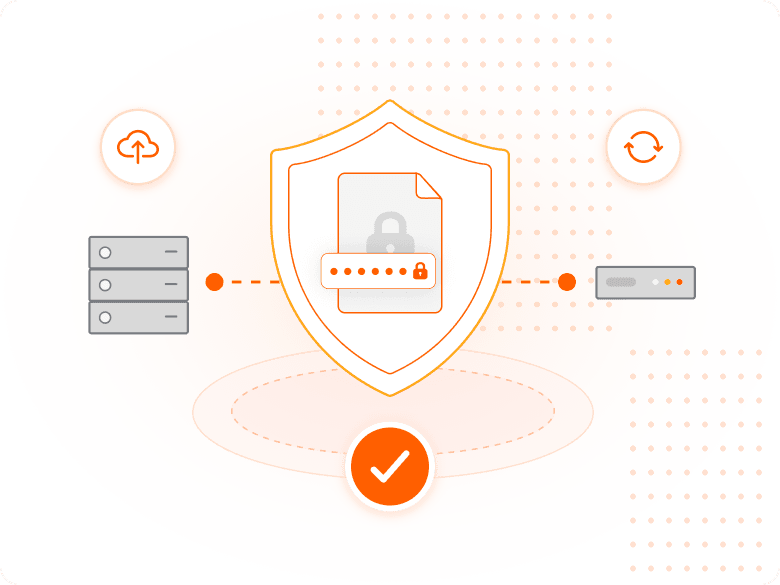
Store digitized files in at least two locations — a primary system and a backup — so a single hardware failure, ransomware event, or accidental deletion doesn't wipe out the archive.
Password-protect sensitive documents within the archive, and test retrieval periodically before discarding the paper originals.
Why a Proper Digitization Process Pays Off
The value shows up months later, when you actually need a document.
A well-digitized archive turns a search that used to take an afternoon of flipping through file boxes into a keyword search that takes seconds — the entire point of digitizing in the first place.
For regulated businesses, a searchable, well-organized digital archive is far easier to produce during an audit or legal discovery request than a room of paper files, and it demonstrates a level of document control that paper never could.
Digitizing also protects against physical loss. Paper burns, floods, and fades; a properly backed-up digital archive survives events that would destroy the originals entirely.
What You Can Do with Foxit PDF Editor
From scanned page to searchable archive, in one tool.
Scan Directly to PDF
Capture paper documents with a scanner or your phone's camera and save them as a structured, page-accurate PDF.
Run OCR for Full-Text Search
Convert scanned pages into searchable, selectable text so every document in your archive responds to a keyword search.
Batch Process in Bulk
Apply OCR and file naming across entire folders of scanned documents in a single operation, not one file at a time.
Protect Sensitive Records
Apply password protection to confidential digitized files — personnel records, financial documents, medical files — as part of the same workflow.
Preserve Original Formatting
Keep scanned pages visually accurate while adding a text layer underneath, so the archive looks and reads correctly.
Export for Any Storage System
Save digitized files in standard PDF format, compatible with any document management system or cloud storage platform.
Who Digitizes Paper Records, and Why
Digitization projects show up across nearly every function that manages paper.
The reason to digitize varies by department, but the underlying need is the same: turning paper that can't be searched into records that can be found in seconds.
- Legal and compliance teams: Legal teams digitize case files and compliance records to respond faster to discovery requests and audits, replacing manual file-room searches with a keyword lookup.
- HR departments: HR teams digitize personnel files, ensuring years of employment records remain accessible and searchable long after an employee's paper file would otherwise be archived in storage.
- Finance and accounting: Finance teams digitize invoices, receipts, and tax records to meet retention requirements while making historical documents retrievable in seconds instead of hours.
- Healthcare administrators: Healthcare offices digitize patient intake forms and historical records, improving retrieval speed while applying the access controls that patient data requires.
Digitization Best Practices Checklist
| Practice | What to Do | Why It Matters |
|---|---|---|
| Scan resolution | 300 DPI minimum, 600 DPI for archival | Produces clear output and reliable OCR accuracy |
| Apply OCR | Run OCR on every scanned page | Makes the document searchable and editable |
| File format | Save in PDF format | Preserves formatting, universally readable and secure |
| File naming | Use a consistent naming convention | Makes files findable months or years later |
| Folder structure | Organize into labeled categories | Creates a navigable archive structure |
| Password protection | Protect sensitive documents | Controls access to confidential records |
| Backup | Store in at least two locations | Protects against hardware failure, ransomware, disaster |
| Retrieval testing | Test finding files before discarding paper | Confirms digital copies are complete and legible |
Practice
Scan resolution
- What to Do
- 300 DPI minimum, 600 DPI for archival
- Why It Matters
- Produces clear output and reliable OCR accuracy
Practice
Apply OCR
- What to Do
- Run OCR on every scanned page
- Why It Matters
- Makes the document searchable and editable
Practice
File format
- What to Do
- Save in PDF format
- Why It Matters
- Preserves formatting, universally readable and secure
Practice
File naming
- What to Do
- Use a consistent naming convention
- Why It Matters
- Makes files findable months or years later
Practice
Folder structure
- What to Do
- Organize into labeled categories
- Why It Matters
- Creates a navigable archive structure
Practice
Password protection
- What to Do
- Protect sensitive documents
- Why It Matters
- Controls access to confidential records
Practice
Backup
- What to Do
- Store in at least two locations
- Why It Matters
- Protects against hardware failure, ransomware, disaster
Practice
Retrieval testing
- What to Do
- Test finding files before discarding paper
- Why It Matters
- Confirms digital copies are complete and legible