How to Convert a PDF to Google Docs
Anyone who's tried to edit a multi-column report or a contract with formatted tables in Google Docs knows the problem: direct conversion rarely preserves what matters. This guide covers both methods honestly.
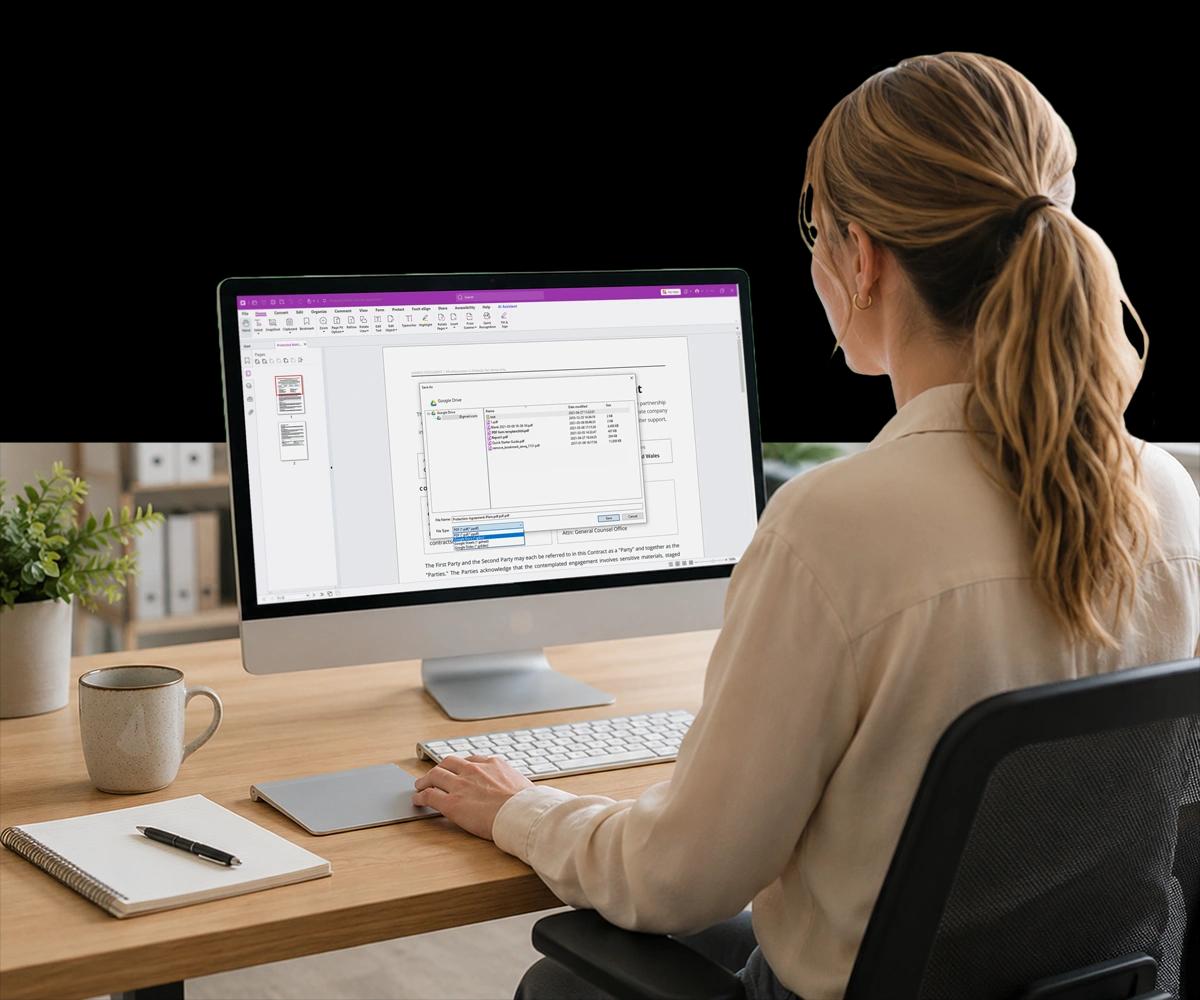
Can You Edit a PDF in Google Docs?
Yes — with an important caveat about complexity.
Google Docs can open a PDF and automatically convert it to an editable document, and for simple, text-heavy PDFs with standard formatting, this works reasonably well.
For anything more complex, the results are inconsistent — tables often break, images may not transfer or get repositioned, fonts get substituted, and multi-column layouts collapse into single-column text.
None of this means you shouldn't use Google Docs to edit PDFs. It means choosing the right method for your document's complexity, and knowing what to expect from each.
What Makes a PDF Convert Well — Or Badly
Two methods, and the document characteristics that determine which one to use.
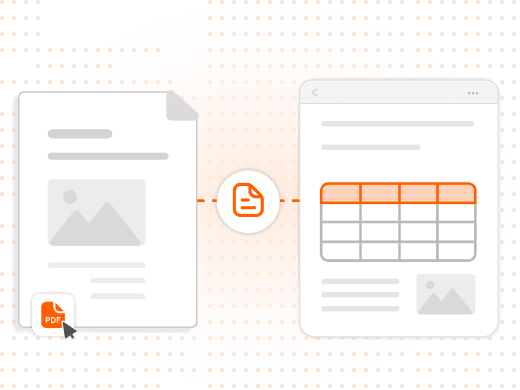
How Do You Open a PDF Directly in Google Docs?
Upload your PDF to Google Drive, then right-click the file and select Open with → Google Docs. Drive automatically converts the PDF to an editable document in a new tab.
This is the fastest path and works best for simple, text-heavy PDFs with minimal formatting complexity — for complex layouts, you may need to repair formatting manually or use the alternate method.
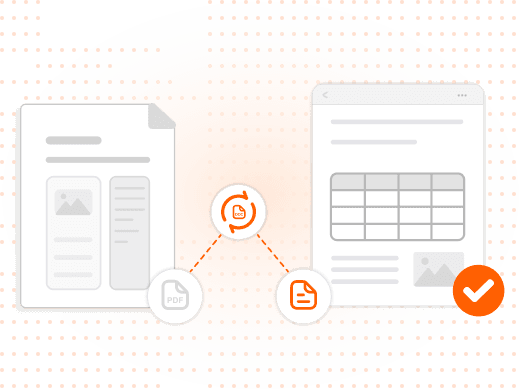
Why Does Converting to Word First Produce Better Results?
Converting your PDF to a Word-compatible format first gives Google Docs a cleaner, more structured input to work with, since the .docx format has explicit structural markup for tables and layout.
Open your PDF in Foxit PDF Editor or Foxit PDF Converter, export to .docx, then upload that file to Google Drive — tables, fonts, and layout transfer with significantly higher accuracy.
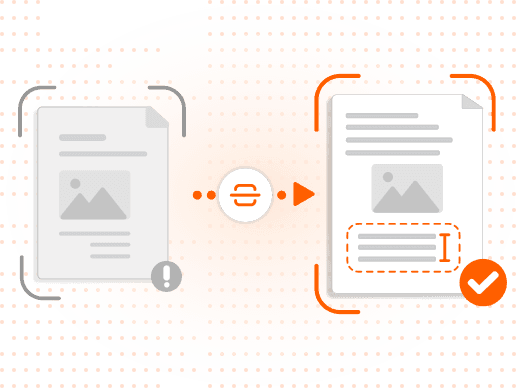
Why Do Scanned PDFs Fail to Convert Properly?
A scanned PDF is an image of a page — there's no text layer for Google Docs to extract. Uploading it directly to Drive produces a blank or unreadable document.
Run OCR in Foxit PDF Editor first to generate a text layer, then convert to Word format and upload — this produces an editable, searchable result instead of image placeholders.

Why Do Tables and Multi-Column Layouts Break During Conversion?
Google Docs interprets table cell boundaries from PDF layout data, which is often imprecise — cells merge, columns misalign, and two or three-column layouts often collapse into single-column text.
Converting through Word first preserves table structure because the .docx format has explicit table markup that Google Docs can interpret reliably.
Method 1 vs. Method 2: Which Should You Use?
| Feature | Method 1: Google Drive Direct | Method 2: Convert First, Then Upload |
|---|---|---|
| Speed | Faster | One extra step |
| Formatting accuracy | Inconsistent | Much higher |
| Tables preserved | Often broken | Preserved |
| Images preserved | May disappear | Preserved |
| Works on scanned PDFs | No | Yes, with OCR first |
| Font consistency | Substituted | Maintained |
| Best for complex documents | No | Yes |
Feature
Speed
- Method 1: Google Drive Direct
- Faster
- Method 2: Convert First, Then Upload
- One extra step
Feature
Formatting accuracy
- Method 1: Google Drive Direct
- Inconsistent
- Method 2: Convert First, Then Upload
- Much higher
Feature
Tables preserved
- Method 1: Google Drive Direct
- Often broken
- Method 2: Convert First, Then Upload
- Preserved
Feature
Images preserved
- Method 1: Google Drive Direct
- May disappear
- Method 2: Convert First, Then Upload
- Preserved
Feature
Works on scanned PDFs
- Method 1: Google Drive Direct
- No
- Method 2: Convert First, Then Upload
- Yes, with OCR first
Feature
Font consistency
- Method 1: Google Drive Direct
- Substituted
- Method 2: Convert First, Then Upload
- Maintained
Feature
Best for complex documents
- Method 1: Google Drive Direct
- No
- Method 2: Convert First, Then Upload
- Yes
Why Choosing the Right Method Saves Real Editing Time
Preventing the trial-and-error loop that wastes an afternoon.
For most business documents — reports, contracts, proposals, structured forms — converting to Word first is the right choice. The extra step is a one-time investment that prevents formatting repair work on the other end.
Font substitution, shifted spacing, and missing headers or footers are common even in successful conversions — reviewing the output before treating it as final avoids surprises when the document is shared or printed later.
Knowing when to convert back to PDF matters too: when a document moves from collaborative editing to final distribution or legal use, converting it to PDF preserves the formatting that Google Docs can't guarantee to hold.
What You Can Do with Foxit
Clean conversion in both directions, plus OCR for scanned files.
Convert PDF to Word Cleanly
Export a PDF to .docx while preserving tables, images, fonts, and layout structure for a smooth Google Docs upload.
Run OCR on Scanned PDFs
Generate a searchable, editable text layer before converting, instead of ending up with a blank document.
Preserve Table Structure
Keep table cell boundaries and column alignment intact through explicit .docx markup during conversion.
Keep Images in Place
Preserve image position and sizing during conversion instead of losing or repositioning embedded graphics.
Convert Back to PDF When You're Done
Turn a finalized Google Doc back into a polished, distribution-ready PDF once editing is complete.
Control Output Settings
Adjust compression, security, and accessibility settings that Google Docs' native PDF export doesn't offer.
Who Converts PDFs to Google Docs, and Why
Editing needs differ, but the formatting problem is universal.
The choice between the direct method and the convert-first method usually comes down to how much the document's formatting matters to the person doing the editing.
- Teams doing quick text edits: For simple memos or text-heavy drafts, the direct Google Drive method is fast enough and formatting variation is an acceptable tradeoff.
- Contract and proposal reviewers: Reviewers editing contracts or proposals with tables and formatting convert to Word first, since a broken table can misrepresent contract terms.
- Marketing and design teams: Teams working with multi-column newsletters or reports use the convert-first method to avoid a layout that collapses into unreadable single-column text.
- Records and compliance staff: Staff digitizing older scanned records run OCR before converting, turning image-only files into genuinely searchable, editable documents.