How to Make an Interactive PDF
A static PDF sits there. An interactive PDF works — guiding readers with navigation, capturing leads with embedded forms, and closing deals with built-in signature requests, all inside one shareable file.

What Is an Interactive PDF?
A document readers can click, fill out, and engage with — not just read.
An interactive PDF is a document that contains elements readers can click, fill out, or engage with directly inside the file — clickable hyperlinks, navigation buttons, fillable form fields, action buttons, embedded multimedia, and electronic signature fields.
Instead of passively reading content, users can navigate between sections, submit information, trigger actions, or watch embedded media without ever leaving the document.
The result behaves more like a web experience than a printed page, while remaining portable, brandable, and fully offline-capable.
The Building Blocks of an Interactive PDF
Links, buttons, forms, and multimedia, each added the same way.
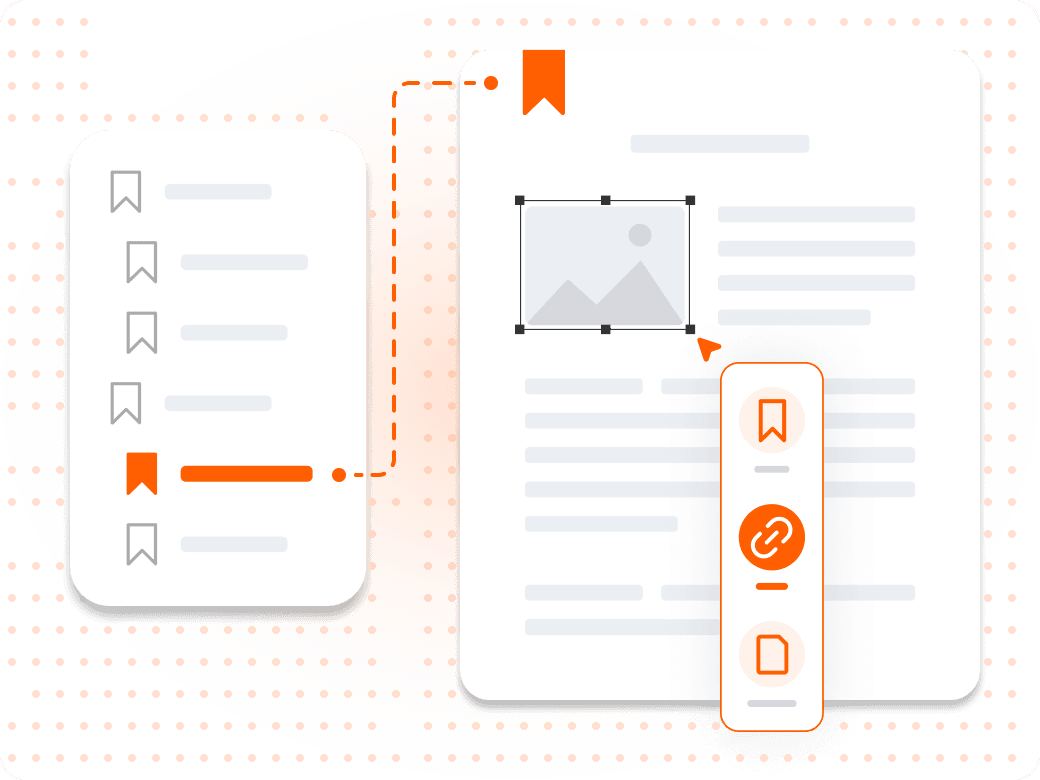
How Do You Add Clickable Links and Navigation?
Go to the Edit tab, select the Link tool, and draw a link area over any text or image you want to make clickable — an external URL, a page in the document, or another file.
For long documents, add a table of contents with clickable entries so readers can jump directly to the sections they need, dramatically improving usability.
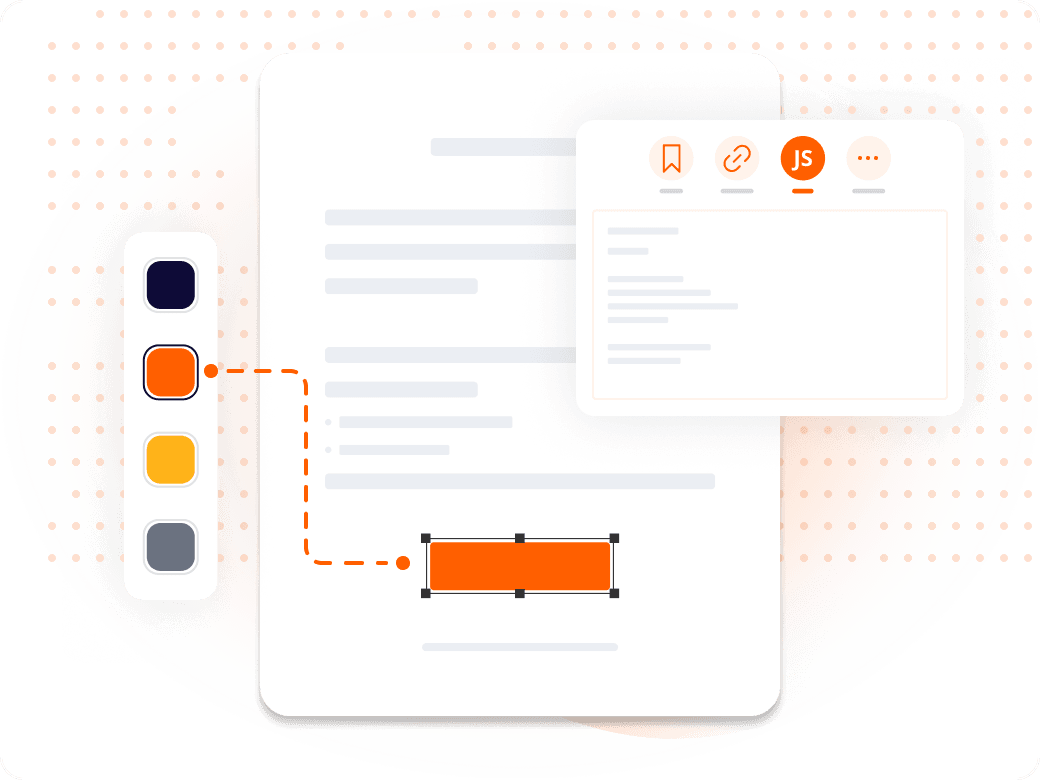
How Are Buttons Different from Links?
Buttons go beyond links — in the Form tab, the Button tool adds action-triggered elements like a 'Learn More' button that opens a URL or a 'Submit' button that sends form data.
Each button can be styled with custom labels and colors, with actions configured to trigger a URL, run a script, play media, or navigate to a specific page.
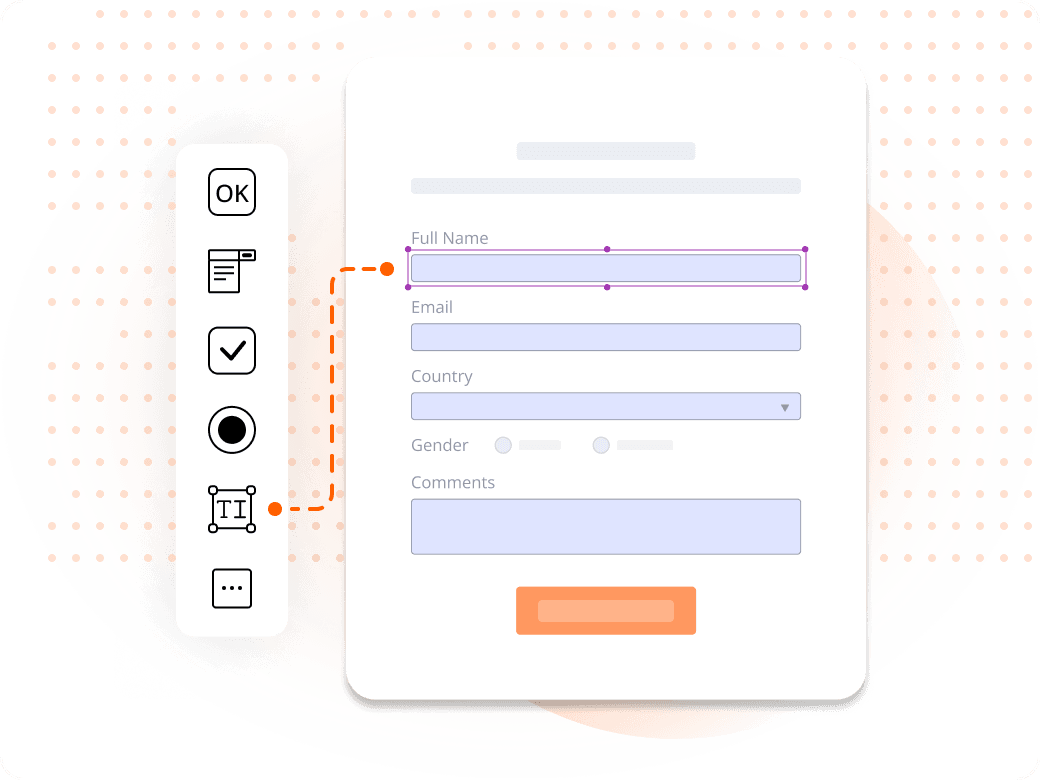
How Do You Add Fillable Form Fields to an Interactive PDF?
Open the Form tab to add text fields, checkboxes, radio buttons, dropdown menus, and date pickers — used to collect information, capture survey responses, or build structured intake forms.
Name fields consistently and set required fields so a form can't be submitted incomplete, especially if you're processing submissions programmatically.
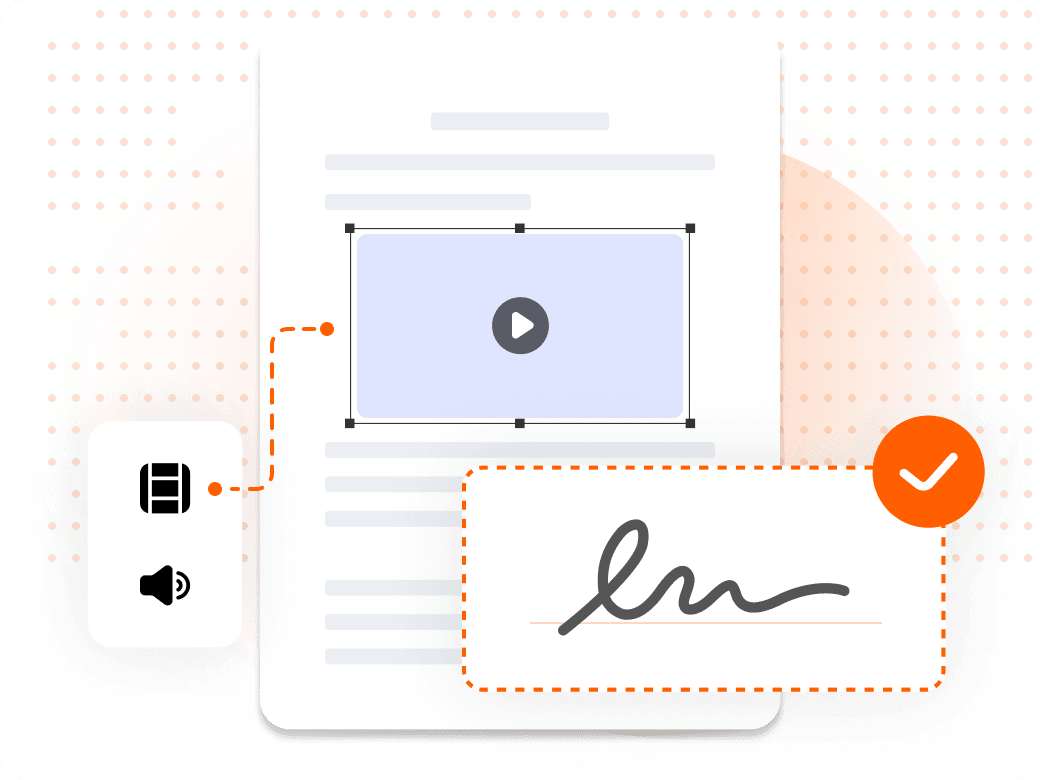
How Do You Add Multimedia or a Signature Field?
Go to Insert and choose Video or Audio to embed media directly into the PDF — particularly effective in training guides and product walkthroughs.
For documents requiring sign-off, add a signature field from the Form tab, or use Foxit eSign for a complete e-signature workflow with audit trails and multi-party signing.
Interactive PDF vs. Static PDF
| Feature | Static PDF | Interactive PDF |
|---|---|---|
| Clickable links | No | Yes |
| Fillable form fields | No | Yes |
| Buttons and navigation | No | Yes |
| Embedded multimedia | No | Yes |
| Data collection | No | Yes |
| Electronic signatures | No | Yes |
| Cross-device compatibility | Limited | Full |
| Works offline | Yes | Yes |
Feature
Clickable links
- Static PDF
- No
- Interactive PDF
- Yes
Feature
Fillable form fields
- Static PDF
- No
- Interactive PDF
- Yes
Feature
Buttons and navigation
- Static PDF
- No
- Interactive PDF
- Yes
Feature
Embedded multimedia
- Static PDF
- No
- Interactive PDF
- Yes
Feature
Data collection
- Static PDF
- No
- Interactive PDF
- Yes
Feature
Electronic signatures
- Static PDF
- No
- Interactive PDF
- Yes
Feature
Cross-device compatibility
- Static PDF
- Limited
- Interactive PDF
- Full
Feature
Works offline
- Static PDF
- Yes
- Interactive PDF
- Yes
Why Create an Interactive PDF Instead of a Static One?
A document that does something is more valuable than a document that just says something.
Interactive PDFs hold attention longer than static ones — navigation buttons guide readers through long documents, and clickable CTAs turn passive readers into active respondents.
Embedded form fields let you collect information directly inside the document — names, emails, responses — replacing an extra step that loses people for gated assets, proposals, and survey materials.
Interactive PDFs also support remote and async workflows: a prospect can navigate a proposal, ask a question through an embedded form, and sign off on next steps — all inside a document you sent once, with no meeting required.
What You Can Do with Foxit PDF Editor
Every interactive element in one tool, no design expertise required.
Add Links and Navigation
Make text or images clickable, and build a table of contents that lets readers jump directly to any section.
Insert Action Buttons
Add styled buttons that open a URL, advance a page, submit a form, or trigger media playback.
Build Fillable Forms
Add text fields, checkboxes, radio buttons, and dropdowns to collect structured information inside the document.
Embed Video and Audio
Add multimedia directly into a PDF for training guides, product walkthroughs, and onboarding materials.
Add Signature Fields
Include a signature field for sign-off, or route the document through Foxit eSign for a full audit-trailed workflow.
Keep Interactive Elements Secure
Apply password protection and permissions while keeping links, forms, and buttons fully functional.
Interactive PDF Use Cases by Team
The right features depend on what your document needs to accomplish.
Interactive elements earn their place when a document needs to do more than inform — when it needs to guide, capture, or close something.
- Marketing teams: Marketing teams use interactive PDFs for lead magnets and branded brochures, with embedded CTAs and forms capturing contact information without redirecting to a separate landing page.
- Sales teams: Sales teams build interactive proposals with section navigation, supporting links, and e-signature fields so prospects can review, engage, and sign off inside one document.
- HR and training teams: HR teams use interactive onboarding guides with embedded video, policy checklists, and completion forms, letting employees complete onboarding at their own pace with documented confirmation.
- Professional services and consulting: Consultants use interactive client deliverables and audit reports with clickable recommendations and signature fields to formalize approvals on key deliverables.