Let’s say you run a juice company and need to change some details on the label on top of a bottle of juice.
The original label was created by a design company using Adobe Illustrator, so it was a vector file. It has since been converted to PDF, and that’s all you have. You want to replace the image of oranges with an image of apples.
Likewise, you need to change the text from “ORANGE” to “APPLE.”
Lastly, you also need to add a new image of apples over the existing label to replace the image of oranges.
Luckily, Foxit PDF Editor Pro supports editing both images and text. You can make these changes in your PDF editor even if you no longer have the original Adobe Illustrator file. And if you’re like many people, you may not have Adobe Illustrator either.
Here’s how to do it:

Sunshine Juices orange juice label
First, open the file in Foxit PDF Editor Pro. Then choose one of the following three methods, depending on the type of changes you need to make.
Method 1
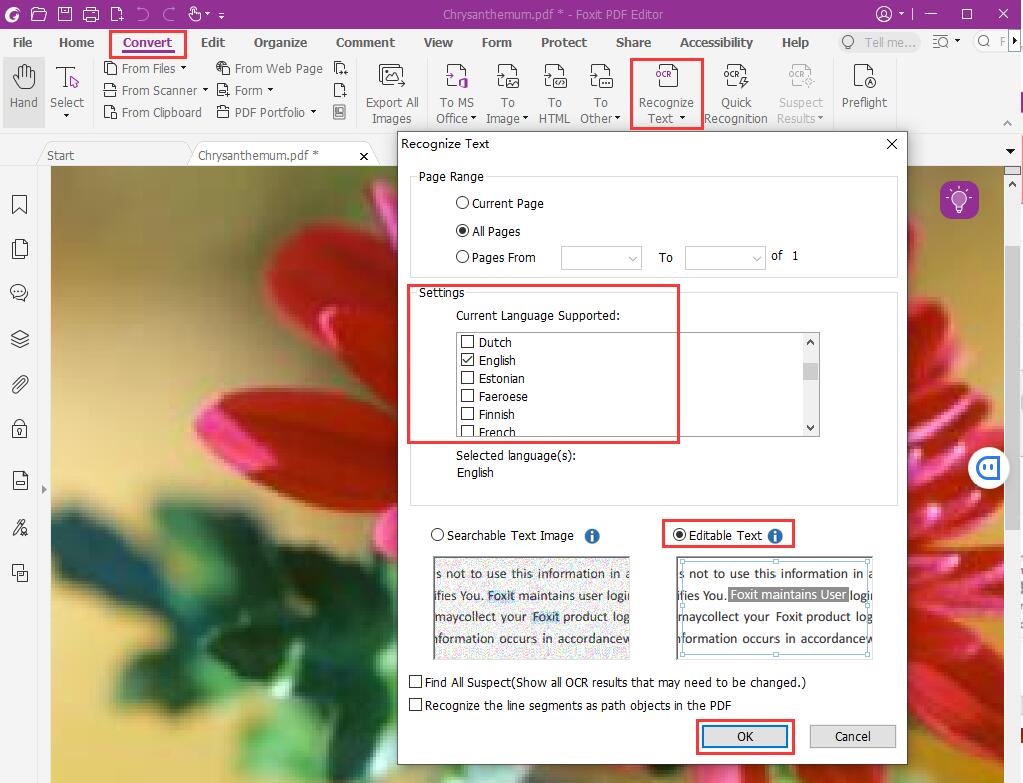
If your PDF contains a scanned image or image-based text that cannot be edited directly, you can use OCR to recognize the text and make it editable.
To do so, follow these instructions:
Click the Convert tab in the menu bar.
Find the Convert group, click the OCR icon, select Current File, and configure the page range and languages as needed.
Under Output Type, select Editable Text.
Click OK to start OCR.
When the process is complete, click the Edit tab and select Edit Object or Edit Text to edit the recognized content as needed.
For more information about OCR and scanned documents, see Foxit PDF Editor’s scan-to-PDF and OCR capabilities.
Using OCR to make text in a PDF editable
Method 2
You can edit images and text using the Image Editor, which is available only in the Pro edition. Here’s how.
Click the Edit tab in the menu bar.
Click the triangle beside Edit Object and select Image.
Double-click the page to enter Image Editor mode.
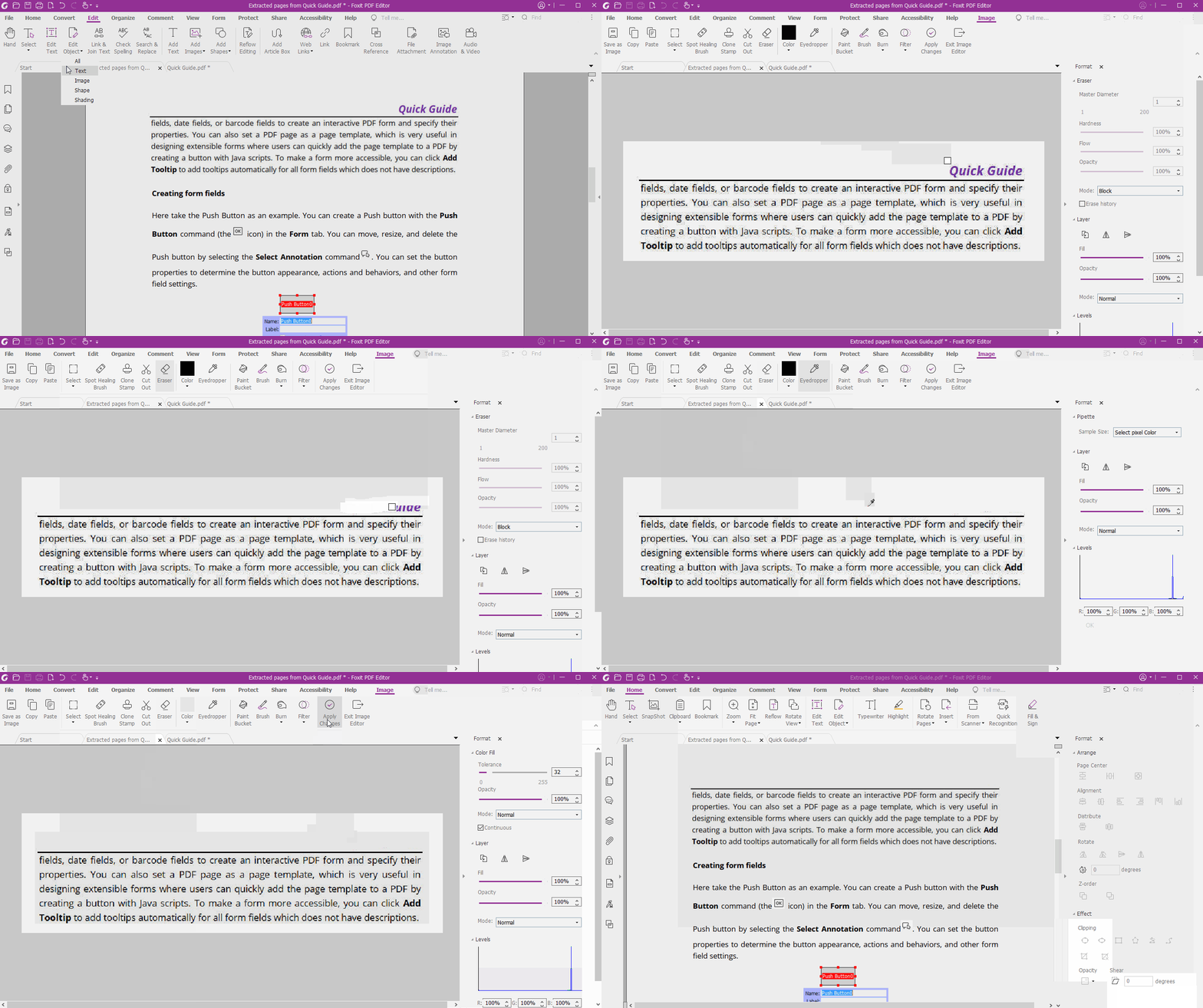
In the toolbar, find the Eraser icon in the Tools group. Use the Eraser to remove the text you want to replace. If the text background is white, skip to Step 6. If it has a different color, continue to Step 5.
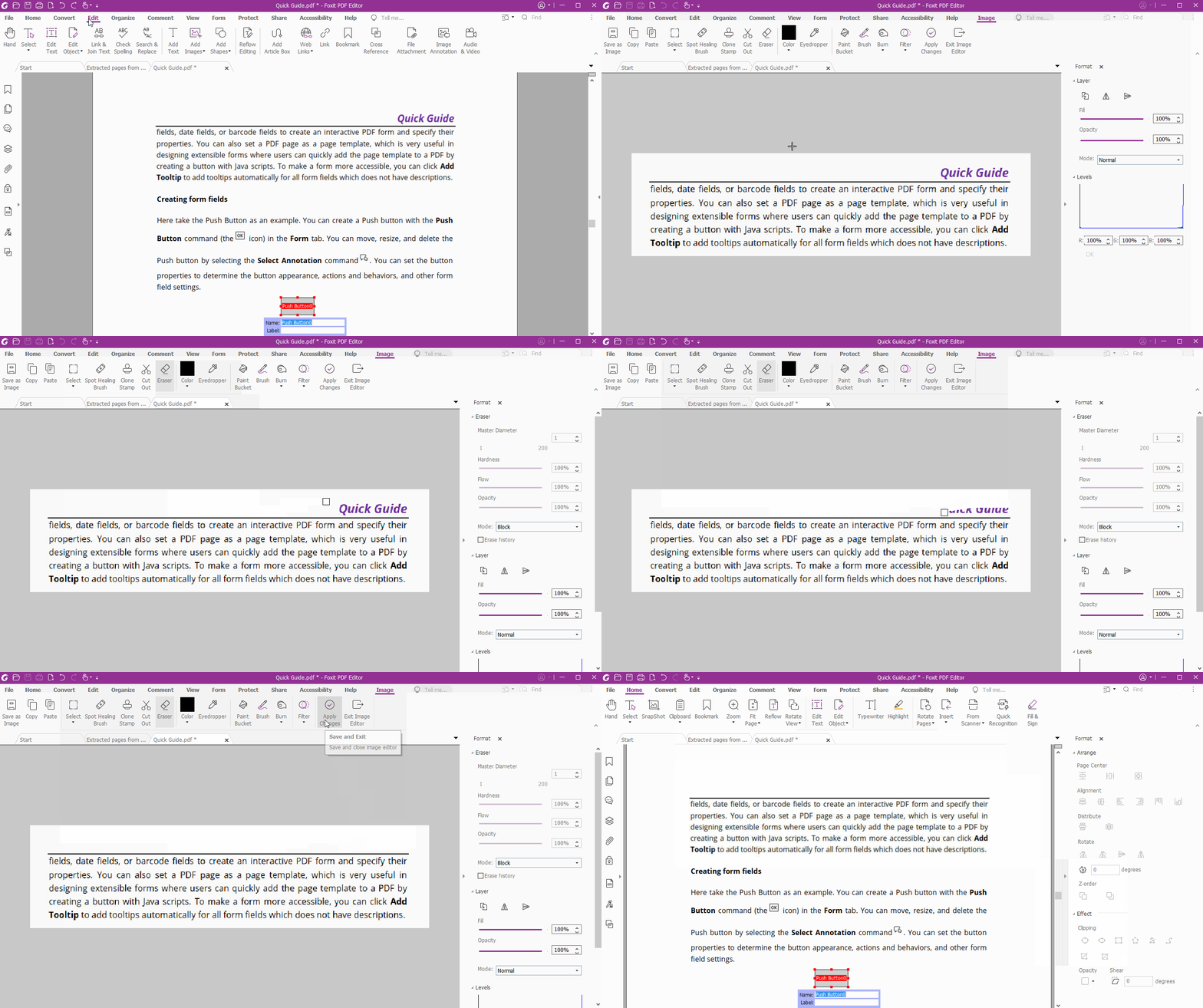
The erased area appears white. To restore the orange background color, use the Eyedropper tool to sample the color and the Paint Bucket tool to fill the area. In the toolbar’s Tools group, select the Eyedropper, sample the desired color from the page, select Paint Bucket, and click the erased area to fill it with the sampled color.
Click the Apply Change icon (the green checkmark) in the toolbar to apply the changes and return to the main PDF Editor Pro screen.
Go to the Edit tab in the menu bar and click Add Text. You can now type the replacement text on the page.
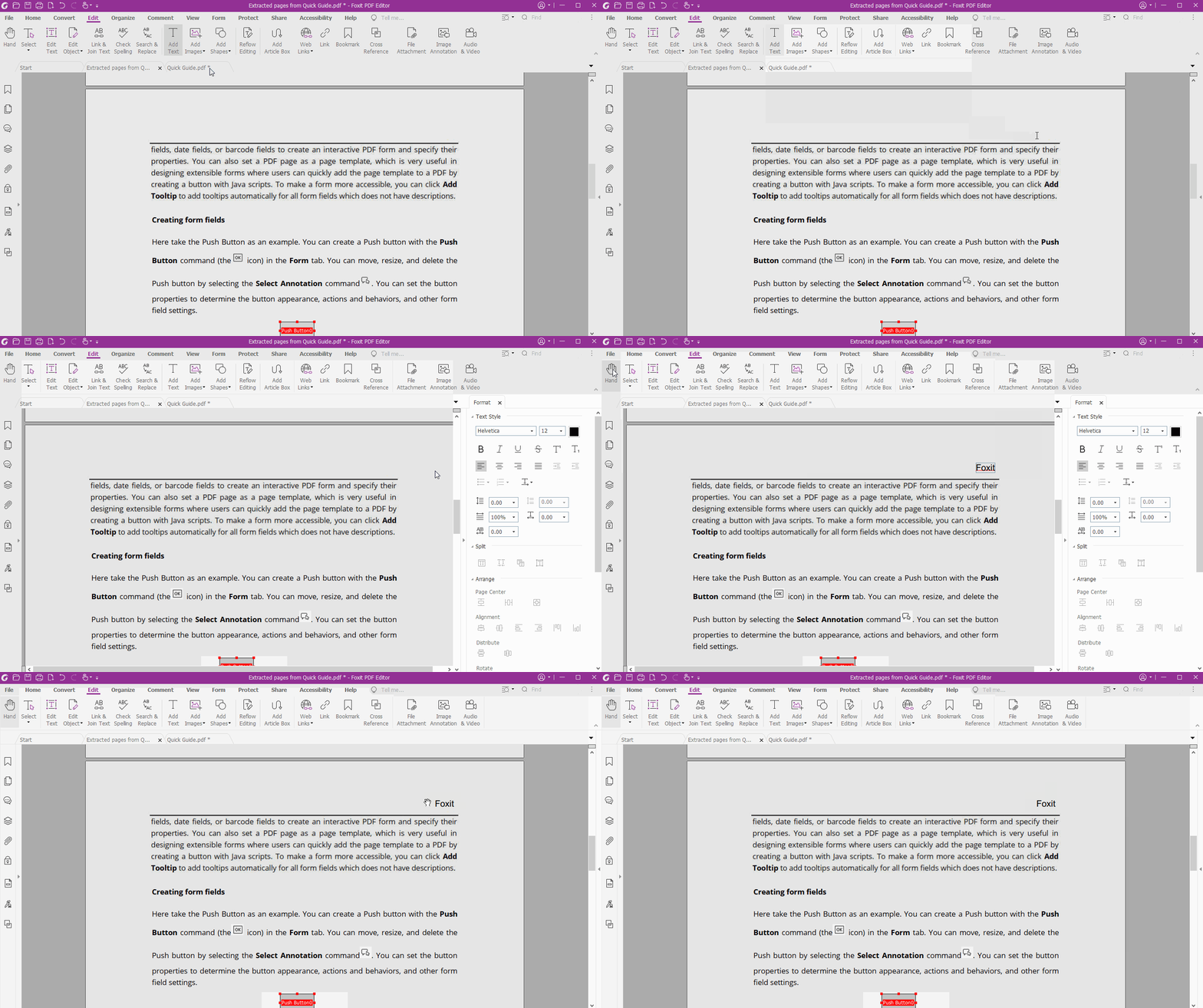
For more advanced editing options, see Foxit PDF Editor’s advanced PDF editing features.
Method 3
You can also add a new image of apples by going to Edit > Add Images > Image from File. Then place the apple image over the oranges and resize it to the desired dimensions.
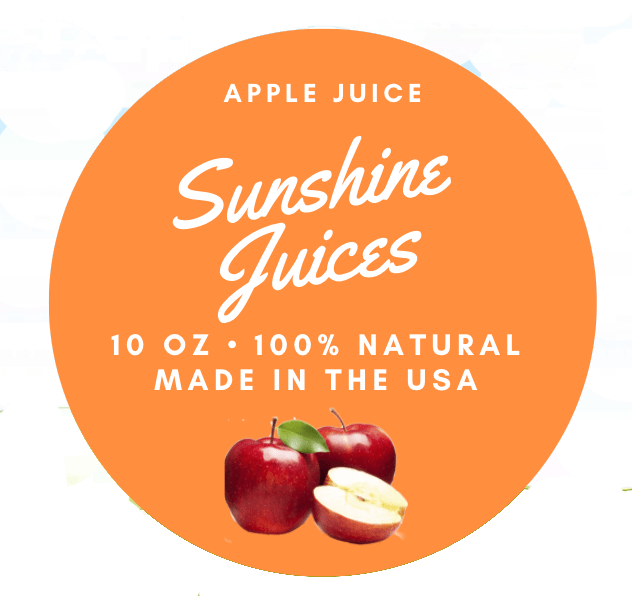
Sunshine Juices apple juice label after editing
Foxit PDF Editor Pro is PDF editing software that gives you control over editing text and images in PDF files.
Foxit PDF Editor Pro supports a range of editing capabilities, including adding images through File > Add Images > Image from File, allowing you to place an image of an apple over the oranges and resize it.
It also allows you to edit text, such as changing a name or address in a document or revising paragraphs directly in the PDF.
Overall, Foxit PDF Editor Pro is a versatile tool for anyone who needs to edit PDF documents.
Get Started today!
Foxit PDF Editor Pro is a comprehensive PDF solution for creating, converting, editing, and collaborating on PDF files.
With Foxit PDF Editor Pro, you can edit text and images directly in a PDF file, as well as add or delete pages.
You can also convert PDFs into other file formats supported by the software for use in other programs. Foxit PDF Editor Pro also offers image-editing tools to help you make adjustments to images within your documents.
For details about supported conversion formats, see Foxit PDF conversion features.
Foxit PDF Editor Pro also supports industry-standard formats such as PDF/A. Check the product documentation for details about supported formats and workflows.
Ready to edit your PDFs? Explore Foxit downloads to get started.