






- March 18, 2026
- Jack Scullin, Digital Marketing Team
It’s no secret that PDF (Portable Document Format) files are standard for sharing and preserving documents across different platforms. At times, however, you may encounter situations where you need to merge multiple PDF files into a single cohesive document.
If you’re a Mac user, you’ll be delighted to know that combining PDFs on a Mac is a straightforward process that offers several options depending on your needs. In this step-by-step guide, we’ll walk you through different methods to merge PDF files on your Mac, making document management simpler and more efficient.
Choosing the right PDF merge method on a Mac based on your needs
Before delving into the how-to steps, it helps to understand which method works best for your situation. The right approach depends on how often you combine PDFs, how important formatting is, and whether you need advanced features.
Use Preview (built-in) when:
- You need to quickly merge a couple of simple PDFs.
- The documents don’t have complex formatting or layouts.
- You’re combining PDFs occasionally, not as part of a regular workflow.
- You want to avoid installing additional software.
Use Foxit PDF Editor when:
- You regularly need to combine PDF documents on a Mac as part of your work.
- Formatting and layout must stay exactly as intended.
- You’re merging PDFs with forms, signatures, or interactive elements.
- You need additional editing capabilities beyond just merging.
- You’re working with business-critical documents where quality matters.
- You need AI assistance, such as a document translator, PDF summarizer, or fraud detection
Use online tools when:
- You’re on a computer where you can’t install software.
- You need a one-time merge and don’t want to set anything up.
- File security isn’t a major concern (always be cautious with sensitive documents online).
Limitations of macOS built-in tools for combining PDFs
While macOS includes native tools for merging PDFs, they come with some notable limitations that can cause problems if you’re not aware of them.
- Formatting issues are common. When you merge PDFs using Preview or other built-in Mac tools, complex layouts, custom fonts, and precise spacing often get disrupted. What looked perfect in the original PDFs might appear jumbled or incorrectly formatted in the merged version.
- Interactive elements disappear. If your PDFs contain fillable forms, digital signatures, hyperlinks, or bookmarks, these features typically don’t survive the merge process using native Mac tools. You’ll end up with a static document that’s lost its functionality.
- Limited batch processing. Built-in tools work fine for merging two or three PDFs, but if you need to regularly combine dozens of files, the manual process becomes tedious and time-consuming.
- No quality control options. You can’t adjust compression settings, optimize file size, or control how images are handled during the merge. This can result in unnecessarily large files or degraded image quality.
- Lack of organization features. There’s no way to add bookmarks, reorganize pages across multiple PDFs, or create a table of contents in your merged document using Preview alone.
Method 1: How to merge PDFs on Mac using Preview (built-in macOS method)
If you’re wondering how you can combine PDFs on a Mac using the Preview app, take the following steps:
- Open the “Finder” and locate the PDF files you wish to merge.
- Select all the PDF files you want to combine by holding down the “Command” key while clicking on each file.
- Right-click on any of the selected files, then choose “Open With” and select “Preview.”
- In Preview, each PDF file will appear as a separate thumbnail on the left sidebar.
- To rearrange the order of the PDFs, drag and drop the thumbnails into the desired sequence.
- Once the pages are in the correct order, go to the “Edit” menu and click “Select All” to ensure that all pages are selected.
- Now, click the “Edit” menu again, followed by “Copy”.
- Create a new blank document in Preview by clicking “File” and “New From Clipboard”. This will paste all the selected pages into the new PDF.
- Save the newly combined PDF by clicking “File” and then “Save”. Give your merged PDF a name, choose the destination folder, and click “Save“.
Method 2: How to combine multiple PDFs on Mac using Foxit PDF Editor
This is one of the simplest ways to combine PDF files. Foxit PDF Editor provides a streamlined workflow for merging PDFs while preserving formatting and document integrity.
If you have Foxit PDF Editor installed on your Mac, open it. If you don’t have it, you can download it here. Then follow these steps to combine PDF files efficiently:
- Click “Convert” in the Ribbon, and select “Combine Files”.
- In the “Combine files into a single PDF” window, click the “Add files” button and choose the desired option from the drop-down list to add the files you want to merge.
- Arrange the files in the desired order using the “Move up” and “Move down” buttons.
- Optionally, you can remove unwanted files by selecting them and clicking “Remove”.
- Once you’re satisfied with the arrangement, click “Combine” to merge the PDF files.
- Save the newly combined PDF to your preferred location by clicking “File” and then “Save”.
Method 3: How to combine PDF files using Automator
Using Automator isn’t the most efficient path for busy professionals, but it does work if you want a built-in macOS solution. Here’s how you do it:
- Launch “Automator”, which can be found in the “Applications” folder.
- When Automator opens, click “New Document”.
- Select “Workflow” and click “Choose”.
- Search for and drag the “PDFs” category to the right-hand pane in the Actions Library on the left.
- In the list of actions, find and drag “Combine PDF Pages” to the workflow area on the right.
- Click on “Add” in the “Combine PDF Pages” action to add the PDFs you want to merge.
- Arrange the PDFs in the desired sequence by dragging them up or down in the list.
- Choose where you want to save the combined PDF by clicking “Options” and setting the output folder.
- Run the workflow by clicking the “Run” button in the top-right corner of the Automator window.
- A new combined PDF file will be created and saved to the specified location.
Method 4: How to merge PDF files on Mac using Finder
From your desktop or a Finder window, you can combine multiple files to create a PDF. Here’s how to combine PDF documents on Mac in this manner:
- Click the icon in the dock on your Mac to open a new Finder window.
- Select files that you’d like to combine in a PDF. You can also select files from your desktop. Note: The files will appear in the PDF in the order you selected them.
- Select the files and then click “Quick Actions” > “Create PDF”.
Method 5: Combine PDF files free using online tools with Mac
Foxit online converter tools are available for free if you do not want to install new software on your Mac but need to combine PDF documents. To combine PDF files online for free with Mac, visit the Foxit merge tool. Then, to easily combine PDF files using the online PDF merge tool by following these simple steps:
- Drag and drop your files into the drop zone.
- If necessary, reorder the files.
- Click on “Start Merging”.
- Download the combined PDF.
How to merge PDFs on Mac without losing formatting
One of the biggest roadblocks when merging PDFs is watching your carefully formatted documents fall apart in the combined file. Here’s how to protect your formatting:
Start with high-quality source PDFs. The quality of your merged document depends on the quality of your original files. If your source PDFs have issues, those problems will carry over (and sometimes multiply) in the merged version.
Use Foxit PDF Editor for complex documents. When you’re working with PDFs that contain tables, charts, custom fonts, headers and footers, or multi-column layouts, Foxit’s merge tool preserves these elements much more reliably than Preview or other built-in Mac tools.
Check your merged PDF immediately. As soon as you’ve combined your files, scroll through the entire document to spot any formatting issues. It’s much easier to fix problems right away than to discover them later when you’ve already shared the file.
How to combine part of a PDF with another PDF on Mac
One of the simplest methods to combine PDF files is when you only need part of a PDF inserted into another PDF file. In this case, if you’re using Preview or Foxit PDF Editor, you can select the pages you want to merge from the Pages panel in the first PDF file and drag them into the thumbnails in the Pages panel of the second PDF file. The nice thing is that either method enables you to merge PDFs automatically.
How to combine scanned images into one PDF file on Mac
This option assumes you’re only looking to combine several images from whatever source you choose into a merged PDF file. You can open the images you’d like to combine in PDF using Preview. You can open several images simultaneously to speed up the process.
It may be helpful to change the view mode of Preview to Thumbnails, Contact Sheet on the View menu on the toolbar to see all your images.
- Choose “File > Print…” from the toolbar. Choose “All Pages” and “Save As PDF” in the dialog box that appears.
- After you select a location for the PDF files, it will save your images in one PDF.
How to activate Foxit PDF Editor on Mac
Here are step-by-step instructions for activating the Foxit PDF Editor on Mac.
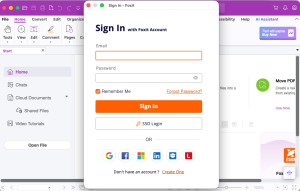
- In the activation wizard which pops up after launching Foxit PDF Editor, click “Sign In” on the bottom right corner.

- Enter your email address and password into the Sign In window. Click “Sign In”.
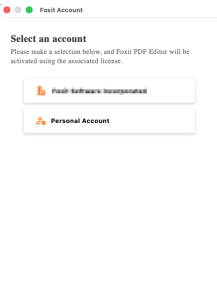
- If your PDF Editor is managed by Foxit Admin Console, select the organization to which you belong.
- Click “Restart Now” in the prompt message to restart the application and apply the changes.
Stop struggling with PDF merges & get professional results every time
As you’ve undoubtedly now seen, it’s easy to merge PDF files on a Mac, and you have several methods to choose from. Whether you prefer using the native Preview app, Automator, Finder, Foxit PDF Editor, or online tools, each approach provides a way to merge PDFs on a Mac to combine them into a single document.
But if you’re tired of formatting issues, lost interactive elements, and unreliable results, it’s time to upgrade your PDF workflow. Download Foxit PDF Editor and experience the difference professional PDF software makes. Merge PDFs with confidence, preserve your formatting, and work more efficiently—all while keeping your documents looking exactly as intended.
Frequently Asked Questions
Can I merge PDF files on a Mac without using any third-party software?
Yes, macOS includes built-in options for merging PDFs using Preview, Finder, and Automator. These tools work well for simple merges where formatting isn’t critical. However, for professional documents, business-critical files, or PDFs with complex layouts and interactive elements, third-party software like Foxit PDF Editor provides much more reliable results and preserves formatting better.
What should I do if the formatting of my PDF changes after merging?
If your formatting changed after merging, first check if you’re using the best tool for the job. Preview and other built-in Mac tools often struggle with complex PDFs. Try using Foxit PDF Editor instead, which is specifically designed to preserve formatting during the merge process.