How to Read a PDF Aloud
Whether you're resting your eyes, multitasking, or need text-to-speech for accessibility, most PDF readers can read a document out loud. This guide covers desktop, mobile, scanned PDFs, and how to fix it when it doesn't work.
What Is PDF Read Aloud?
Text-to-speech built into your PDF reader, not a separate app.
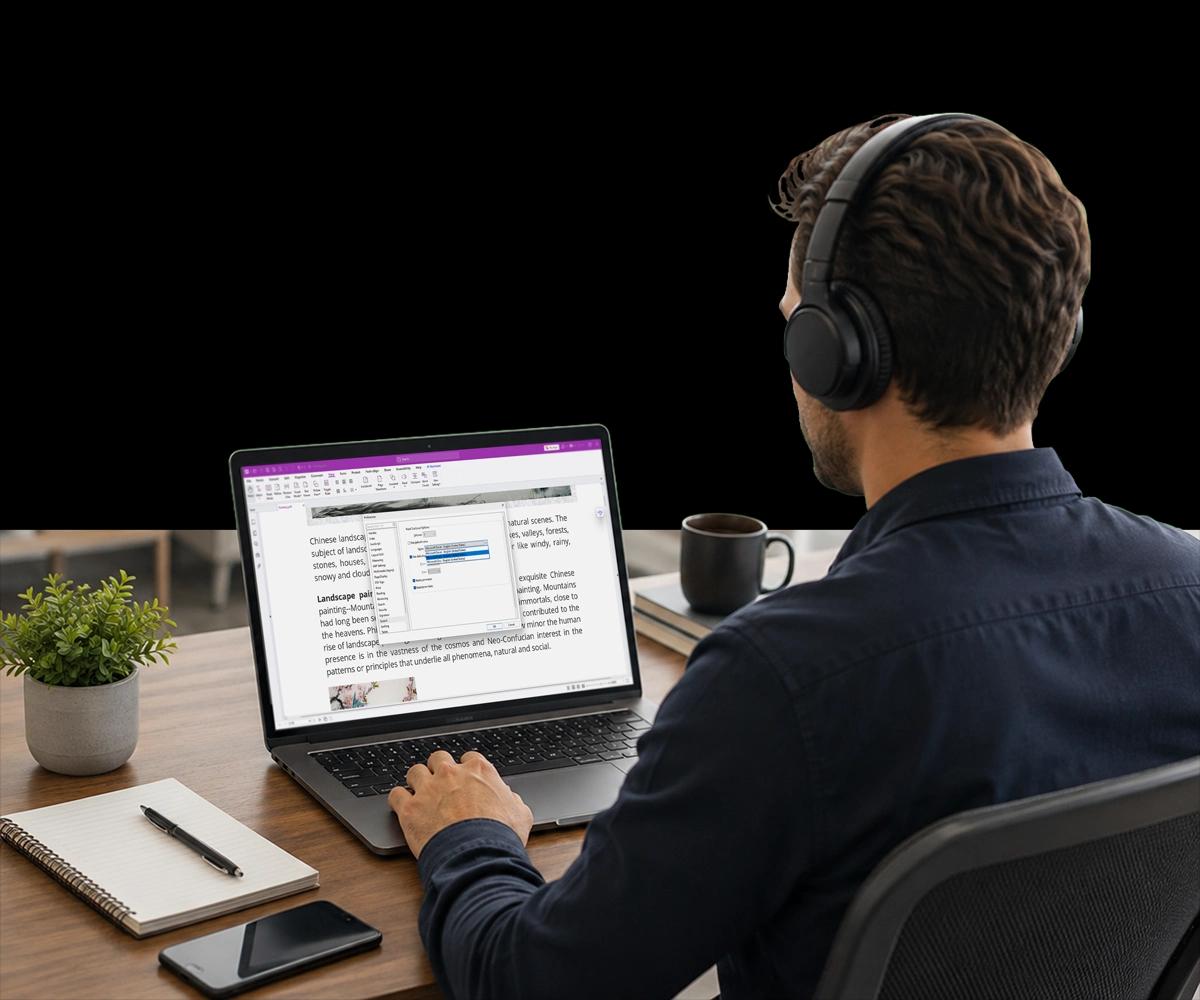
PDF Read Aloud is a text-to-speech feature built into most modern PDF readers that converts the selectable text in a document into spoken audio, read at an adjustable pace and voice.
It works on any PDF with a real text layer — meaning it can read a typed report or contract immediately, but it needs OCR first on a scanned document, since a scan is an image, not text the reader can speak.
Read Aloud is useful well beyond accessibility use cases: professionals use it to proofread, multitask during long documents, and give their eyes a break during a heavy reading day.
What You Need to Know Before You Start
Desktop, mobile, and scanned documents all work a little differently.
How Do You Turn On Read Aloud on Desktop?
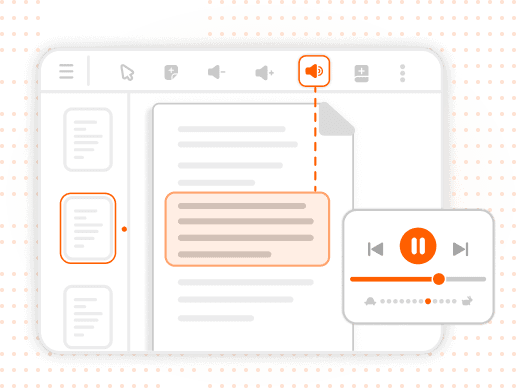
In Foxit PDF Reader, open your PDF, go to View → Read Aloud → Activate, then choose whether to read the current page, a selection, or the entire document.
Playback controls let you pause, skip, and adjust voice and speed from the same menu, so you can fine-tune the experience without leaving the reader.
Why Won't Read Aloud Work on a Scanned PDF?
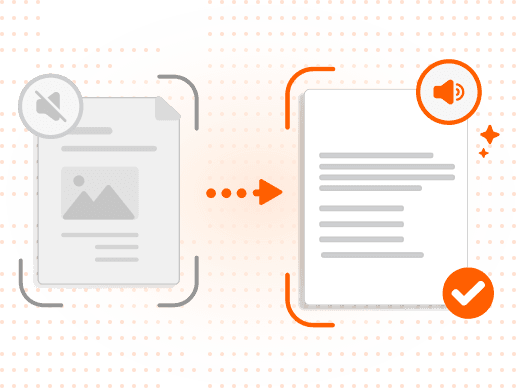
A scanned PDF is a photograph of a page — there's no real, selectable text for the reader to speak. Read Aloud will appear greyed out or produce no audio until that's fixed.
Run OCR (Optical Character Recognition) in Foxit PDF Editor to generate a searchable text layer, then Read Aloud works normally in Foxit PDF Reader.
How Do You Read a PDF Aloud on Mobile?
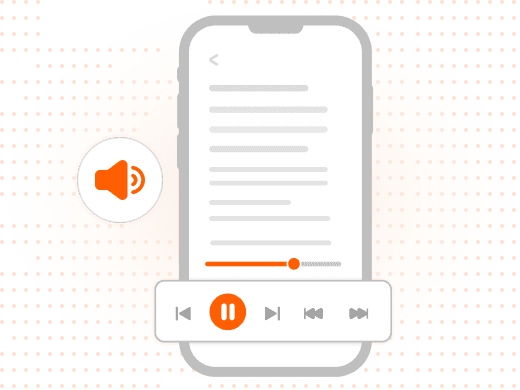
On iOS and Android, open the PDF in the Foxit PDF Reader app and use the built-in Read Aloud or your device's native screen-reading accessibility feature.
Mobile playback typically includes the same pause, skip, and speed controls as desktop, so you can listen during a commute or workout without missing a beat.
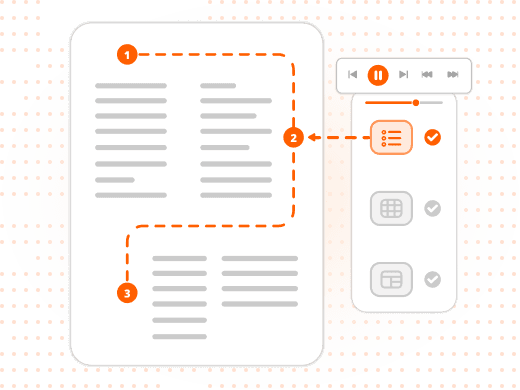
Why Does Read Aloud Sometimes Read in the Wrong Order?
Complex multi-column layouts and tables can confuse the reading order, especially in PDFs without proper accessibility tags defining structure and hierarchy.
Foxit PDF Editor's TouchUp Reading Order tool lets you manually define the correct reading sequence so the audio follows the content in the right order.
Troubleshooting Common Read Aloud Issues
| Issue | Likely Cause | Fix |
|---|---|---|
| No audio at all | Device muted, wrong output, or Read Aloud not activated | Check system volume and activate via View → Read Aloud |
| Read Aloud option greyed out | Scanned PDF with no selectable text | Run OCR in Foxit PDF Editor, then try again |
| Reading stops mid-document | Page break handling or large file timeout | Use Read to End of Document, or split very large files first |
| Voice sounds robotic | Default system text-to-speech voice quality | Change the voice in your OS speech settings |
| Wrong language being read | System voice doesn't match document language | Change the voice to match the document's language |
| Reading speed too fast or slow | Default reading rate not adjusted | Adjust speed in Read Aloud or OS speech settings |
| Text read in the wrong order | Complex multi-column or table layout | Use Foxit's TouchUp Reading Order tool to fix sequence |
Issue
No audio at all
- Likely Cause
- Device muted, wrong output, or Read Aloud not activated
- Fix
- Check system volume and activate via View → Read Aloud
Issue
Read Aloud option greyed out
- Likely Cause
- Scanned PDF with no selectable text
- Fix
- Run OCR in Foxit PDF Editor, then try again
Issue
Reading stops mid-document
- Likely Cause
- Page break handling or large file timeout
- Fix
- Use Read to End of Document, or split very large files first
Issue
Voice sounds robotic
- Likely Cause
- Default system text-to-speech voice quality
- Fix
- Change the voice in your OS speech settings
Issue
Wrong language being read
- Likely Cause
- System voice doesn't match document language
- Fix
- Change the voice to match the document's language
Issue
Reading speed too fast or slow
- Likely Cause
- Default reading rate not adjusted
- Fix
- Adjust speed in Read Aloud or OS speech settings
Issue
Text read in the wrong order
- Likely Cause
- Complex multi-column or table layout
- Fix
- Use Foxit's TouchUp Reading Order tool to fix sequence
Most Read Aloud issues fall into one of three categories: audio output configuration, missing OCR on a scanned document, or reading order problems in complex layouts.
Why Listening to Documents Is Worth Building Into Your Workflow
More than an accessibility feature — a genuine productivity tool.
Extended screen reading creates eye fatigue, particularly for long documents. Switching to audio lets your eyes rest while you continue absorbing the content — especially useful for anyone who spends most of the workday reading on screens.
For users with visual impairments, low vision, dyslexia, or other reading-related challenges, PDF text-to-speech provides independent access to document content without requiring assistance from someone else.
Audio also lets you absorb content during activities where reading isn't possible — commuting, exercising, or handling light manual tasks — and hearing a document read aloud surfaces errors, like repeated or missing words, that the eye tends to skip when reading silently.
What You Can Do with Foxit PDF Reader and Editor
Text-to-speech, OCR, and accessibility tools working together.
Read Any PDF Aloud
Activate built-in text-to-speech to have any page, selection, or full document read at an adjustable pace.
Make Scanned PDFs Readable
Run OCR to convert scanned pages into selectable text so Read Aloud — and search — work correctly.
Adjust Voice and Speed
Fine-tune playback voice and reading rate through your PDF reader or operating system's speech settings.
Fix Reading Order Issues
Use the TouchUp Reading Order tool to correct how multi-column layouts and tables are read aloud.
Listen on Any Device
Use Read Aloud in Foxit PDF Reader on desktop, iOS, and Android for a consistent listening experience anywhere.
Support Inclusive Document Access
Combine Read Aloud with accessibility tagging to give every reader independent access to your content.
Who Uses Read Aloud, and Why
A feature that serves accessibility needs and everyday productivity alike.
Read Aloud gets framed as an accessibility feature, and it's an essential one — but plenty of people without any reading-related need reach for it too, simply because listening fits their day better than reading in that moment.
- Users with visual impairments or dyslexia: Read Aloud gives independent access to document content without requiring someone else to read it aloud, especially when combined with properly tagged, accessible PDFs.
- Busy professionals and commuters: Long reports and briefings that would otherwise require dedicated reading time can be consumed in parallel with a commute, a workout, or other tasks.
- Writers and editors: Hearing a document read aloud surfaces awkward phrasing and missing words that silent reading tends to skip past, making it a common final proofreading pass.
- Anyone managing screen fatigue: Switching a long document to audio partway through gives the eyes a break without losing progress through the content.