






- March 19, 2026
- Jack Scullin, Digital Marketing Team
While Google Docs primarily functions as a web-based document editor, there are times when you may need to save your document in a different file format, such as PDF. Whether you’re submitting a resume, sharing a proposal with a client, or archiving important records, knowing how to save a Google Doc as a PDF ensures your document looks exactly as intended, no matter who opens it or what device they’re using.
In this article, we’ll explore all the different ways you can convert a Google Doc to PDF format, allowing you to preserve formatting, secure your document, and share it more widely. Below are a few simple methods to follow when converting Google Docs to PDF format.
How to save a Google Docs file as a PDF using the Google Docs app
- Open the Google Doc from Google Drive: You can either create a new PDF file from a Google Doc or access an existing one from your Google Drive.
- Access the “File” Menu: Click on the “File” option to reveal a dropdown menu for options, then choose your Google Doc in Google Drive.
- Select “Download” from the Dropdown Menu: Clicking download will open a secondary dropdown menu with several file format choices, but we will be focused on converting Google Doc to a PDF document.
- Choose “PDF Document (.pdf).” From the secondary menu, select the “PDF Document” option. This will perform the conversion process in which you save a Google Doc as a PDF file.
- Locate your downloaded PDF: This is usually the “Downloads” folder on your computer or device. Double-click on the file to open and view it using a PDF reader like Foxit PDF Reader or any other compatible software. Once the process is complete, it might be impossible to convert PDF back to a new document.
This is an easy way to download a PDF file from a Google Doc. The process of converting Google Docx files to PDF files is the same from browser to browser.
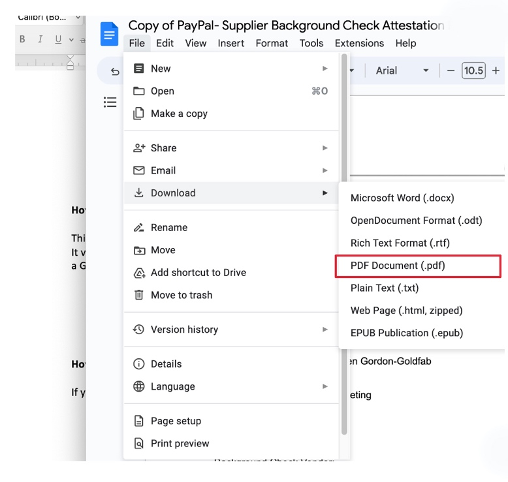
How to save Google Docs as a PDF on desktop:
You can either create a new PDF file from a Google Doc or access an existing one from your Google Drive.
- Click on the “File” option to reveal a dropdown menu for options, then choose your Google Doc in Google Drive.
- Clicking download will open a secondary dropdown menu with several file format choices, but we will be focused on converting Google Doc to a PDF document.
- From the secondary menu, select the “PDF Document” option. This will perform the conversion process in which you save a Google Doc as a PDF file.
- This is usually the “Downloads” folder on your computer or device. Double-click on the file to open and view it using a PDF reader like Foxit PDF Reader or any other compatible software.
How to save a Google Doc as a PDF using browser print commands:
When using the browser commands, the process to save a Google Doc as a PDF will vary from browser to browser. Here’s how to do so using Chrome:
- On your computer, after opening Google Drive, open Google Docs using the Google Chrome browser.
- At the top, click File > Print.
- Next to “Destination,” select Save as PDF.
- At the top, click Save.
As you can see, this is a very straightforward way to convert a Google Doc to PDF.
Here’s how you can achieve this on the Safari browser:
- Select PDF.
- At the top, click Save.
Safari also gives you the option to save a Google Doc as a PDF by exporting the file to PDF. All you do is choose File > Export as PDF. You’ll be prompted to choose the location to save PDF to. Once you do, click Save.
How to save a Google Doc as a PDF file on Chrome
Here’s how to save a select file as a Google Doc in PDF format using Chrome.
- On your computer, after opening Google Drive, open Google Docs using the Google Chrome browser.
- At the top, click File > Print.
- Next to “Destination,” select Save as PDF.
- At the top, click Save.
How to save a Google Doc as a PDF file on Safari
If you’re on the Safari browser, here are the steps to follow to convert a Google Doc to PDF format.
- On your computer, open a Google Doc. Create a new file or choose an already existing file.
- At the top, click File > Print.
- Select PDF.
- At the top, click Save.
Safari also gives you the option to save a Google Doc as a PDF by exporting the file to PDF. All you do is choose File > Export as PDF. You’ll be prompted to choose the location to save the pdf to. Once you do, click Save. That’s the process for how to save a Google Doc as a PDF.
How to convert Google Doc to PDF on mobile:
You can easily convert a Google Doc to PDF directly from your phone using the Google Docs or Google Drive app. The process is slightly different on Android and iPhone, but both allow you to export your document as a PDF and save or share it from your device.
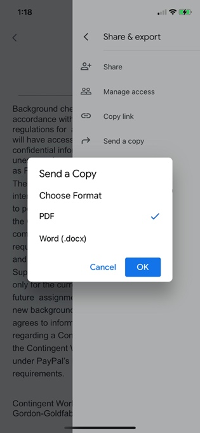
On Android, you can convert the document directly using the Share & Export menu. On iPhone, you’ll use Send a Copy to export the file as a PDF, which you can then save to Files, iCloud, or share via email.
Follow the step-by-step instructions below for your device.
Save Google Docs as a PDF on Android
To do so, follow these steps:
- Open the Google Docs or Google Drive app on your Android phone.
- Open the document that you want to convert to a PDF version.
- Click the ellipses (…) menu at the top-right corner and choose Share & Export.
- Tap on Save As > PDF Document, then click OK.
Convert Google Docs to PDFs on iPhone
The method to create a PDF from Google Docs on iPhone is a little more involved, but only slightly. In this case, you may have to email yourself the Google Doc as a full PDF attachment, however, you’ll still be able to save it in your iPhone Files or on iCloud once you do.
Just do the following:
- Open the Google Docs or Google Drive app on your iPhone.
- Open the Google Docs document that you want to convert to PDF format.
- Click the ellipses (…) menu at the top-right corner and choose Share & export.
- Click Send a Copy, then choose PDF.
- Then click OK.
Common issues when saving a Google Doc as a PDF and how to fix them
Even though the process to save as a PDF in Google Docs is straightforward, you might run into a few hiccups along the way. Here are the most common issues and their solutions:
- Page breaks in the wrong places: Google Docs sometimes handles page breaks differently than PDF viewers. Before converting, use Print Preview to see where your page breaks will fall. You can manually insert page breaks (Insert > Break > Page break) to control exactly where pages split.
- Missing fonts or changed typography: If you’ve used custom fonts in your Google Doc that aren’t standard web fonts, they might not transfer correctly to PDF. Stick with common fonts like Arial, Times New Roman, or Google’s own fonts to ensure consistency.
- File size is too large: Documents with lots of high-resolution images can create massive PDF files. If your PDF is too large to email or upload, consider compressing images before conversion or using a PDF compression tool after converting.
- Links not working in the PDF: Sometimes hyperlinks in your Google Doc don’t carry over to the PDF. After converting, open your PDF and test any links to make sure they’re still functional. If they’re broken, you may need to recreate them using a PDF editor.
How to save Google Docs as PDFs without losing formatting
Formatting issues are the most frustrating part of any document conversion. You spend time making everything look perfect, only to have it fall apart when you save it as a PDF.
Here’s how to prevent that:
- Use standard fonts and formatting: Stick with widely supported fonts and avoid overly complex formatting. Tables, headers, and bullet points usually convert cleanly, but heavily customized styles can cause problems.
- Check margins and spacing before converting: Use the Print Preview function (File > Print) to see exactly how your document will look as a PDF. This lets you catch spacing issues, awkward page breaks, or cut-off content before you commit to the conversion.
- Avoid last-minute edits in the PDF: While you can edit PDFs after creation, it’s much easier to get everything right in Google Docs first. Once you’re confident the formatting looks good in Print Preview, then convert to PDF.
How to convert a PDF to a Google Doc (and back again)
Sometimes you need to go in the opposite direction—taking a PDF and converting it into an editable Google Doc. This is useful when you receive a PDF that needs editing but don’t have access to the original document.
To convert a PDF to a Google Doc:
- Open Google Drive and click the “+ New” button.
- Select “File upload” and choose your PDF.
- Once uploaded, right-click the PDF file in Google Drive.
- Select “Open with” > “Google Docs.”
- Google will convert the PDF into an editable Google Doc format.
If you need to make quick edits to a PDF without converting it to Google Docs, using a dedicated PDF editor like Foxit PDF Editor gives you more precise control and preserves the original formatting better.
Why save Google Docs as PDFs? Advantages for sharing and printing
Understanding when and why to convert Google Docs to PDFs helps you make better decisions about document management. Here are the key advantages:
- Universal compatibility: PDFs open on virtually any device, operating system, or software. When you share a PDF, you never have to worry whether the recipient can open it. Google Docs requires a Google account or compatible software, while PDFs just work.
- Better for printing: PDFs are designed to print exactly as they appear on screen. If you’re sending something to be professionally printed or just need consistent results from any printer, PDF is the way to go.
- Professional presentation: PDFs feel more official and finished than editable documents. When you’re sharing resumes, contracts, reports, or proposals, the PDF format signals that this is the final version.
- Security and control: While Google Docs can be edited by anyone with access, PDFs are read-only by default. If you want to share information without allowing changes, convert to PDF first.
How can I edit a PDF after saving my Google Doc?
Once you’ve converted your Google Doc to PDF, the file becomes read-only. However, you can still make edits using a PDF editor like Foxit PDF Editor. Simply open the PDF file in Foxit PDF Editor, and you’ll have access to tools for editing text, adding annotations, inserting images, and more. If you need to make substantial changes, it might be easier to edit the original Google Doc and then reconvert it to PDF.
Get more out of your PDFs with the right tools
As you can see, converting a Google Doc to a PDF is a simple process. By following the steps outlined here, you can easily save and download your Google Doc files in a portable format, allowing for easy sharing, compatibility, and professional presentation of this very popular Google Drive app.
Whether you need to share important reports, resumes, or any other digital document, knowing how to save a Google Doc as a PDF is helpful. It ensures that your file’s formatting and content remain intact across different platforms as you share it and collaborate. It also means you get even more utility out of Google Doc files.
Once you’ve converted your documents to PDF, having powerful tools to manage, edit, and share them makes all the difference. Foxit PDF Editor provides everything you need to work with PDFs efficiently and with Foxit AI, the first AI built into a PDF editor, you can automate routine tasks and extract insights faster using tools like our PDF AI Assistant and PDF Summarizer. Explore all the ways you can do more with documents with Foxit.