 Chat with PDF
 PDF Summarizer
 Document Translator
 Analyze Document
 Extract Information
 Risk Analysis
 Contract Review
 Fraud Detection
Connect Foxit AI to the tools your work already runs on.
Your documents don't live in isolation and neither should the AI reading them. As the PDF industry's first native Model Context Protocol (MCP) Host, Foxit connects your documents to the systems where the rest of the work happens. Pick a connector from the menu, or configure any MCP server you like.
Available in Foxit PDF Editor, Foxit PDF Reader, and Workspace Desktop.
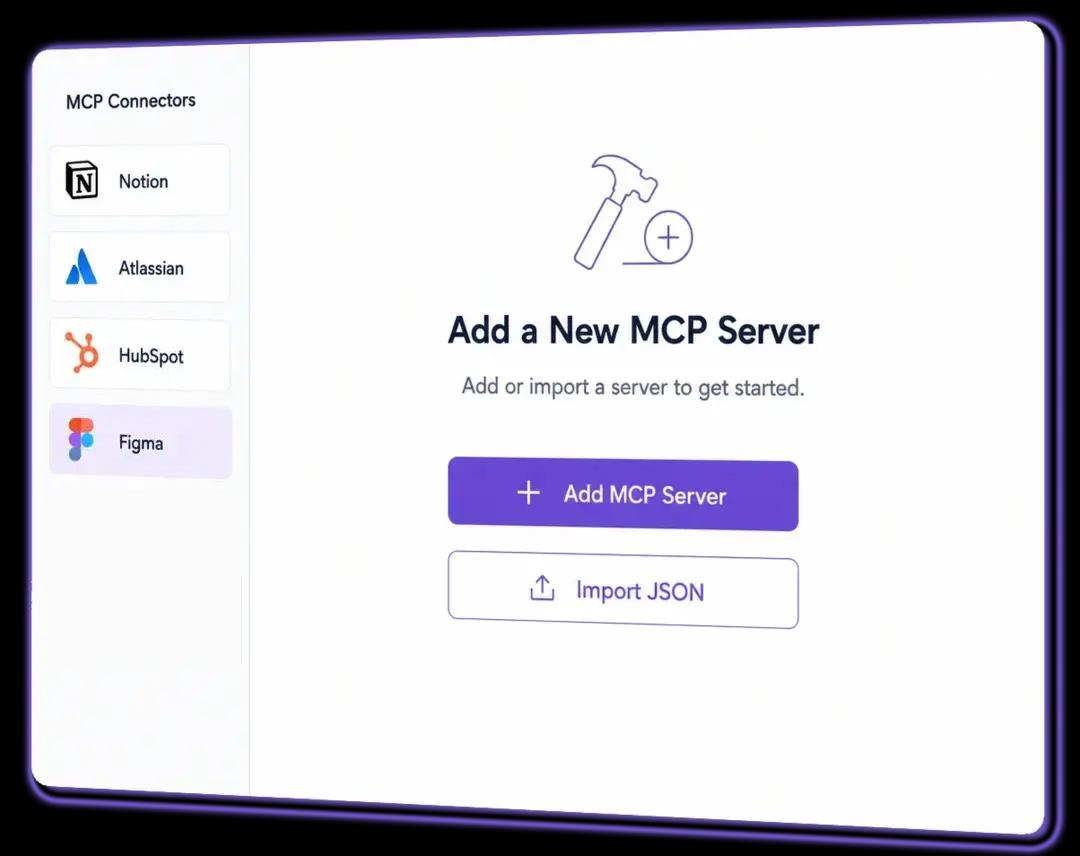
Host and server, in plain terms
Model Context Protocol is an open standard for letting an AI application talk to outside software. The application making the request is the Host. Each tool it talks to runs as a Server. Foxit is the Host. Notion, or your internal ticketing system is the Server.
Ask Foxit AI to open a ticket from a spec document, and Foxit sends that request to the ticketing server, which does the work and reports back. The document stays where it is. The AI reaches out from it.
Foxit PDF Editor was the first PDF application in the industry to operate as an MCP Host.
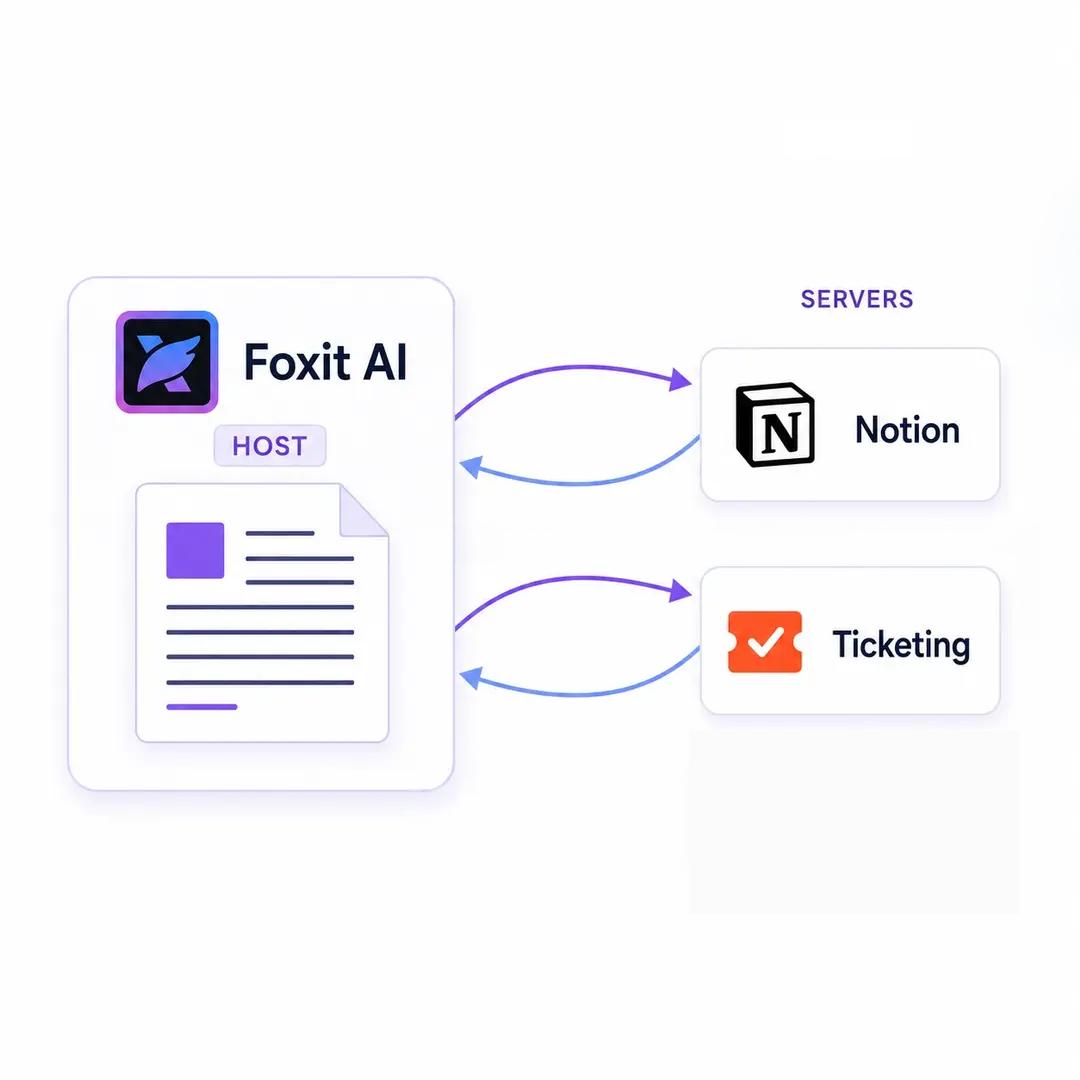
Five connectors, one click each
Open the Connector menu, pick the tool, sign in once. No configuration files, no commands, no tokens to paste. Foxit ships preset connectors for five of the tools business teams live in.
 Notion
 Atlassian
 Asana
Asana HubSpot
 Fireflies
Each person signs in with their own account, so the AI has exactly the access that person already has and nothing more.
Or connect anything else
Presets cover the common cases. For everything else, add an MCP server yourself. The MCP ecosystem is large and growing, with open-source and managed servers available through public directories, so most tools you'd want are already covered by someone.
Point Foxit at a server, supply the credentials it needs, and it becomes available to the AI alongside your documents. Teams have used this route for Jira, Salesforce, and Gmail among many others.
These are third-party services. Foxit is not affiliated with, does not assume responsibility for, and does not provide support for these external marketplaces, directories, or the servers they provide.
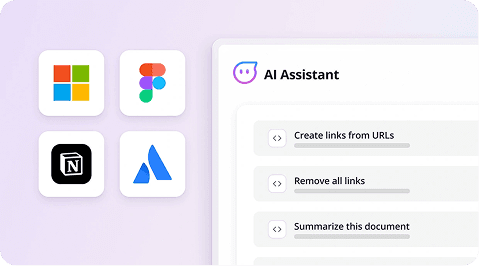
Where connectors run
Connectors run in Foxit's desktop applications, where the AI can reach software installed and authenticated on your machine.
Browser Workspace will point you to Workspace Desktop when you open Connectors, so nothing is a dead end.
Documents that do something
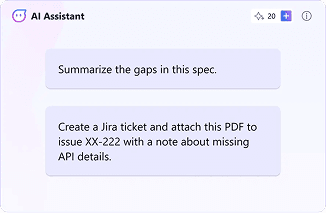
Product and engineering
A product manager reviewing a spec finds a gap, and the AI opens a pre-filled ticket linked to the exact section of the PDF. The engineer picking it up gets the context instead of a screenshot.
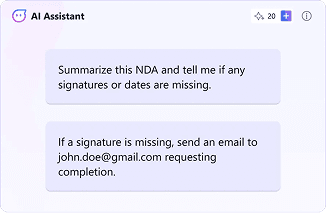
Legal and operations
A paralegal has the AI scan an NDA for missing signatures, then send the signer a reminder over email. A multi-step chase becomes one instruction.
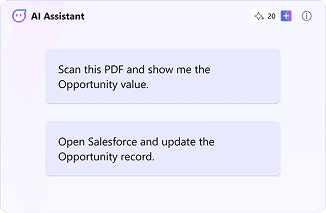
Sales operations
A sales ops manager reviewing a purchase agreement pulls the opportunity amount out of the contract and updates the CRM record without opening another tab.

The organization decides. The user controls.
Connectors gives an AI reach into systems that matter, so the controls matter as much as the capability. Foxit splits them deliberately.
Administrators decide whether MCP is allowed
Foxit Admin Console lets an administrator enable or disable MCP across the organization. If MCP isn't approved for your environment, it isn't available in it.
Every action asks first
No MCP tool runs without explicit confirmation. The AI proposes, you approve, then it acts. There is no silent execution path.
Credentials stay with the person
Tokens and API keys are configured per tool by the individual user, on their own machine. There is no shared service account and no central credential store, so a compromised token reaches one person's tools rather than the organization's.
Access is scoped to the session
Tool access is limited to your active session in the application, so nothing stays connected and reachable after you close it.
Setting up your first connector
Open a Foxit desktop application, go to AI Assistant, open the MCP Tools panel, and either pick a preset connector or add a server of your own. The full walkthrough, with screenshots for each step, lives in the setup guide.
Simple pricing for Foxit AI Assistant
Foxit AI Assistant
Included with every Foxit account
FREE
- 300 AI credits per month
- AI Assistant in Foxit PDF Editor and PDF Reader
- Full access to Workspace
- Local AI on supported devices, no credits used
- Works in desktop, web, and mobile apps
Frequently asked questions
The Foxit MCP Host is a capability that lets Foxit applications communicate with external software using the Model Context Protocol, an open standard for connecting AI to other tools. Foxit acts as the Host, sending requests to MCP Servers such as Notion, or a ticketing system, which perform the work and return a result. Foxit PDF Editor was the first PDF application to operate as an MCP Host.
Foxit provides preset one-click connectors for Notion, Atlassian, Asana, HubSpot, and Figma. Beyond those, any MCP server can be added manually, including servers for tools such as Jira, Salesforce, and Gmail. Public MCP directories host a large and growing set of open-source and managed servers that can be configured this way.
MCP connectors are available in Foxit PDF Editor and Foxit PDF Reader on Windows and Mac desktop, and in Workspace Desktop. Connectors are not available in the browser version of Foxit Workspace, in Foxit Cloud Editor, or on mobile. Opening Connectors in browser Workspace will direct you to Workspace Desktop.
Foxit Admin Console lets administrators enable or disable MCP for their organization. Connector configuration is per user and per machine, so each person adds and authenticates their own connectors. Preset connectors are selected from a menu and require a single sign-in per user.
Every MCP tool action requires explicit user confirmation before it runs, so nothing executes silently. Authentication tokens and API keys are configured per tool by the individual user on their own device, with no shared service account. Tool access is scoped to the active session in the application and does not persist after the session ends.
Put your documents to work
MCP connectors are available in Foxit PDF Editor, Foxit PDF Reader, and Workspace Desktop. Pick a connector, sign in, and give the AI something to do.