Foxit PDF Editor for Windows
User Guide
Get the User Guide in PDF format for easy offline access.


Move and resize an image
To move an image, please do the following:
- Select the Select Annotation command or the Image Annotation command, put the cursor over the image and the cursor changes into an arrow
 .
. - Click and drag the image to another place you like.
To resize an image, please do the following:
- Select the Select Annotation command or the Image Annotation command, put the cursor over the image and the cursor turns into an arrow , and then click the image.
- Place the cursor on any corner point. The cursor changes into the cursor showing the direction at which the rectangle will be resized.
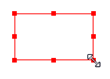
To resize the image
- Drag the cursor outside, it will increase the size of the rectangle proportionally. Drag the cursor inside and it will decrease the size of the rectangle proportionally.