Foxit PDF Editor for Windows
User Guide
Get the User Guide in PDF format for easy offline access.


Button overview
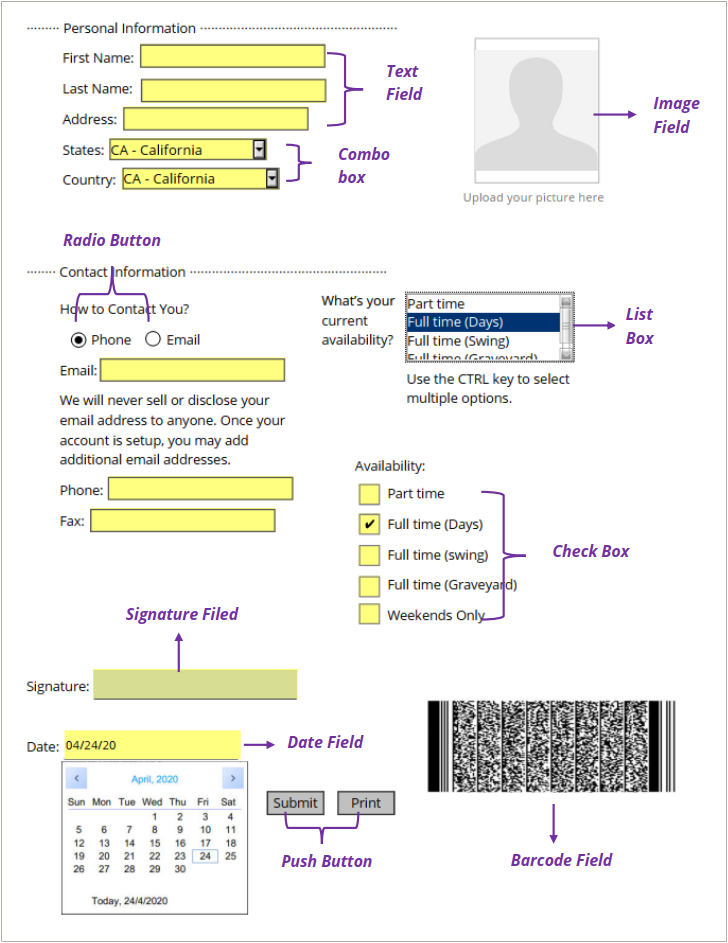
There are ten basic buttons to add form fields for you to create an interactive PDF form:
Button | Tool Name | Description |
 | Push Button | Creates an interactive form element to initiate certain predefined actions, such as opening a file, submitting data to a web server, or resetting a form. This button can also be customized with images and text. |
 | Check Box | Presents yes-or-no choices for individual items. If the form contains multiple check boxes, users can select what they want. |
 | Radio Button | Presents a group of choices from which the user can select only one item. |
 | Combo Box | Lets the user either choose an item from a pop-up menu or type in a value. |
 | List Box | Displays a list of options the user can select. |
 | Text Field | Lets the user type in text, such as name, address, phone number, etc. |
 | Signature Field | Creates a blank digital signature field for reviewers to sign the document |
 | Image Field | Lets the user browse and select an image to add to the field. |
 | Date Field | Lets the user choose a date. |
 | Barcode Field | Represents a user’s form entries in a visual pattern that can be scanned, interpreted, and incorporated into a database. |
Form Fields
Note: To create the same type of form fields continuously without reselecting the same tool, you can select Form > Tool Settings > Keep Tool Selected.