Foxit PDF Editor for Windows

User Guide

  • Introduction
  • Get Started
  • Read
  • Create
  • Edit
    • Undo and Redo
    • Links
    • Bookmarks
    • Page thumbnails
    • Destinations
    • File Attachments
    • Images
      • Add an image
      • Apply an image to other pages
      • Move and resize an image
      • Set properties of an image
      • Delete an image
      • Arrange images
        • Select multiple images
        • Align images
        • Center images
        • Distribute images
      • Resize multiple images
      • Setting properties of multiple images
    • PDF Optimizer
    • Action Wizard (Pro Only)
    • Work with Video & Audio
    • Search and Replace Text
    • Paragraph Editing
    • Objects
    • Articles
    • Spelling Check
    • Working with Layers
    • PDF properties and metadata
  • Organize
  • Comment
  • Share PDFs
  • Forms
  • Security
  • Signature
  • Accessibility
  • Foxit Admin Console
  • Print
  • Foxit AI Assistant (Available in Subscription Releases and Certain Regions)
  • Appendices

Align images

  • Select two or more images that you want to align.
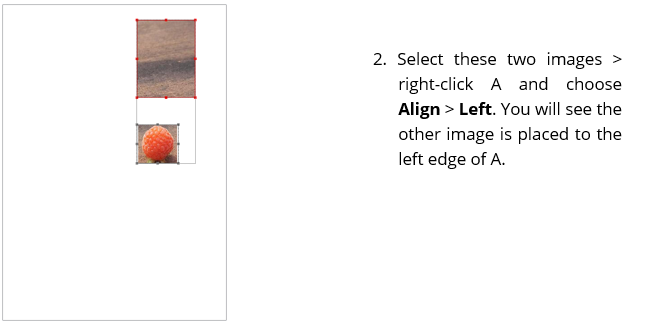
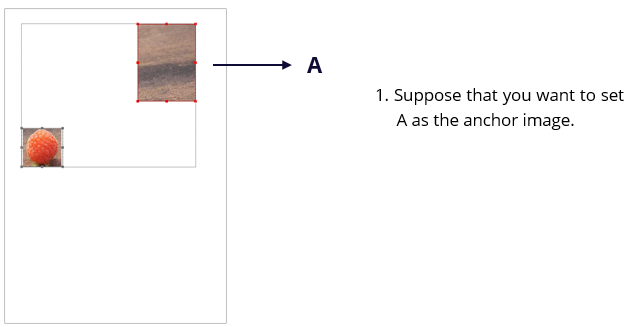
  • Select a type of alignment in the Format tab in the right panel, or right-click the anchor image and choose Align. Then choose a type of alignment.
  1. To align a column of images, choose Left, Right, or Vertically to align them respectively to the left edge, right edge, or vertical axis of the anchor image.
  2. To align a row of images, choose Top, Bottom, or Horizontally to align them respectively to the top edge, bottom edge, or horizontal axis of the anchor image.

Note: The alignment commands move the other selected images to line up with the edges of the anchor image.

Below is an example: 
Align ImagesAlign Images