Foxit PDF Editor for Windows
User Guide
Get the User Guide in PDF format for easy offline access.


About Foxit Configuration Tool
Foxit PDF Editor MIP Protect feature provides a handy configuration tool for administrators to better modify the protection settings on an MIP server. Administrators can directly enable/disable each tool, edit the extended policy of official templates, dynamically revoke permissions, audit logs, set valid network printers, and customize wrapper files.
To start to use the configuration tool to encrypt PDFs, please do the following:
- Log on to your MIP server.
Download the Foxit Configuration Tool from:
- Unzip and Run Foxit Configuration Tool, you can use the different tools in Foxit Configuration Tool window. Note: Before getting started, you need to configure the VBScript in the unzipped folder by inputting your specific localhost address and port number in the script. The default port number in the script is 80, such as admin_role = config_manager.Initialize(true,"localhost",80,"","",""). You need to change the port number to the one your server currently uses.
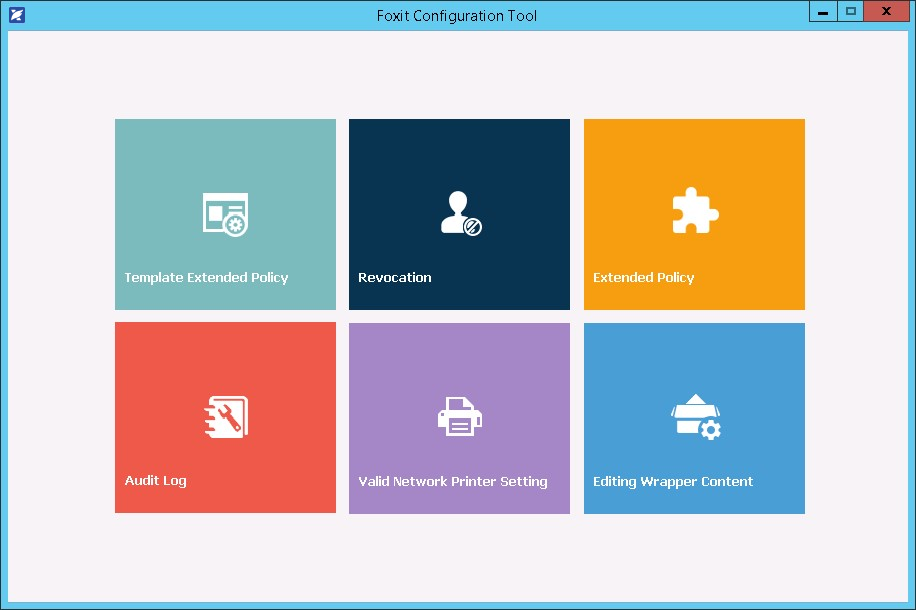
Foxit Configuration Tool Window