 Chat with PDF
 PDF Summarizer
 Document Translator
 Analyze Document
 Extract Information
 Risk Analysis
 Contract Review
 Fraud Detection


Drag PDF file here (max 100MB)
or
Your files will be securely handled by Foxit cloud servers.
By using this service, you agree Foxit's Terms of Service and Privacy Policy.
By using this service, you agree Foxit's Terms of Service and Privacy Policy.
Rate this tool
 0/5 - 0 votes
How to Extract Pages from a PDF Online
1
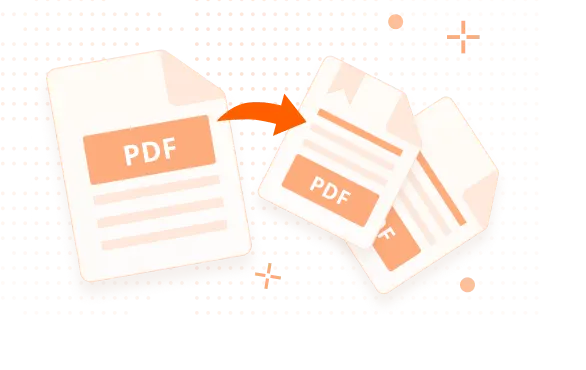
Drag and drop your PDF file into Foxit's online Extract Pages from PDF tool.
2
In Editor Cloud, click 'Organize' > 'Extract'. Select the page range and extraction mode in the pop-up dialog, then click 'OK'.
3
The extracted PDF will download automatically to your computer.
What Makes Foxit the Best online Extract Pages from PDF tool

Extract Only the Pages You Need
Foxit’s Extract Pages from PDF tool makes it easy to select and extract specific pages from a PDF. Instead of working with an entire document, you can create a new PDF that contains only the pages you want.

Fast and Precise Page Extraction
Extract pages from a PDF online to support your workflows. Foxit’s tool allows you to choose individual pages or page ranges, helping you reuse content and organize documents more efficiently.

Safe and Secure
After pages are extracted, Foxit automatically deletes both the original and extracted files, helping ensure your documents and information remain protected.
Extract PDF Pages for Free on Your Desktop for 14 days.
High-Quality PDF Pages Extractor + MORE
Top Use Cases for our Extract Pages from PDF tool
Large PDFs often include sections you don’t need. With Foxit, you can extract just the pages you want and create a new PDF without editing or copying.
- Save time when working with reports, proposals, or manuals
- Reuse key pages for new documents
- Keep original files intact
Don’t send more than needed. Extract specific pages from a PDF so you can share only what matters and keep the rest confidential.
- Ideal for client updates, internal reviews, or external collaborators
- Reduce file size and information exposure
- Maintain privacy while improving communication
Extracting pages makes it easy to group content by subject, department, or purpose. This simplifies search, storage, and access.
- Create focused files for HR, legal, or finance
- Improve file naming, tagging, and categorization
- Reduce clutter in shared folders and DMS platforms
Need sign-off on just a few pages? Foxit lets you extract the exact sections required for review—making the process faster and more focused.
- Share only what reviewers need
- Avoid confusion with large files
- Perfect for audits, contracts, and documentation tasks
Frequently Asked Questions on our Extract Pages from PDF tool
Foxit’s tool works in any web browser on Windows, macOS, Linux, iOS, Android, and ChromeOS.
You only need a computer, a supported web browser, and an Internet connection to extract pages from a PDF online.
Extracting pages means saving selected pages from a PDF as a new file while keeping the original document unchanged.
Splitting creates multiple documents based on page breaks. Extracting creates one new PDF with only the pages you selected.
Yes. Use Foxit PDF Editor to extract pages offline and access advanced features like page organization and batch tools.
Yes. Your files are encrypted during processing and deleted from Foxit’s servers after the extraction is complete.
Yes. Foxit allows you to select any combination of pages—not just ranges—before generating your new file.
Yes. Foxit’s online tool is free for extracting pages. For offline use and batch features, try Foxit PDF Editor.
Extract PDF Pages Articles You May Find Helpful


Trusted by Professionals Worldwide













See How Foxit Stacks Up
Redefining your PDF experience with speed and innovation.
Gartner® and Peer Insights ™ are trademarks of Gartner, Inc. and/or its affiliates. All rights reserved. Gartner Peer Insights content consists of the opinions of individual end users based on their own experiences, and should not be construed as statements of fact, nor do they represent the views of Gartner or its affiliates. Gartner does not endorse any vendor, product or service depicted in this content nor makes any warranties, expressed or implied, with respect to this content, about its accuracy or completeness, including any warranties of merchantability or fitness for a particular purpose